SCEP
This feature is available from certdog 1.16
Certdog supports the SCEP protocol (RFC8894)
Multiple SCEP end points can be created - each with a different configuration. This allows for multiple setups that may provide different certificate types from different CAs.
Only RSA issuers are supported currently.
Configuration
From the menu, select Interfaces and then choose SCEP
Click Add New SCEP Service:
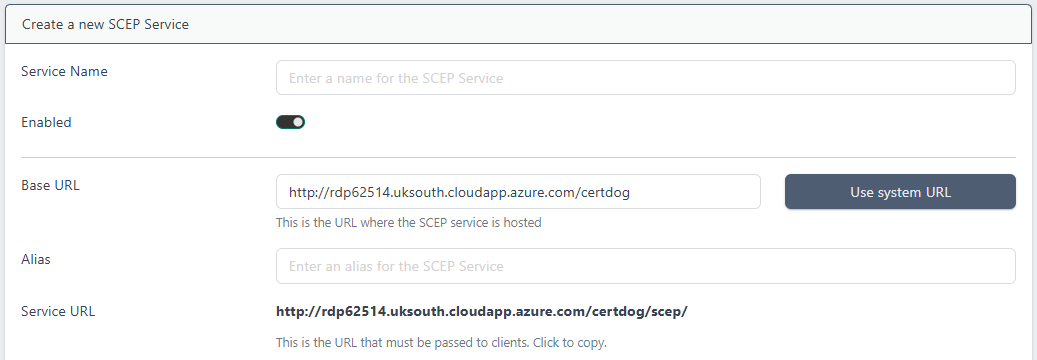
- Service Name. Enter a name. This can be anything to identify the service to the administrators. End users will not see this value
- Enabled. This enables the service. If this is un-checked clients will receive an error indicating that the service is disabled
- Base URL. This will be pre-populated using the servers System URL. If that value has not been set or you need to alter this value (e.g. if the URL that clients will access uses a DNS address or goes via some load-balancer etc.), then update it here. Click Use system URL to revert back to the internally stored system URL
- Alias. This is what will define the specific URL for this service, that clients will target for SCEP calls. It is simply appended to the URL to make it unique. It should not contain spaces
- Service URL. This is value will be calculated from the Base URL and Alias. This is the value should be provided to clients
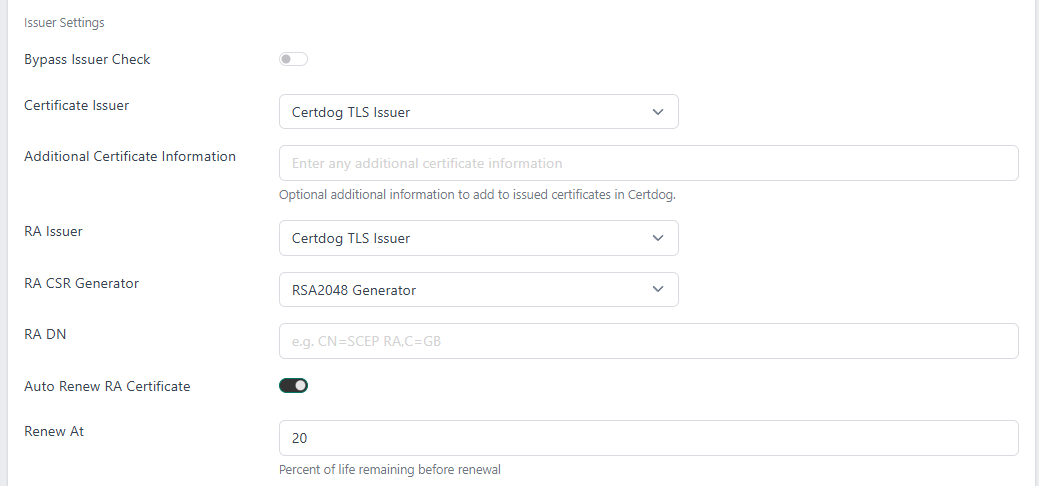
- Bypass Issuer Check. If this is checked, Certdog will reject the configuration if the two issuers (certificate and RA) are not connected to the same certificate authority
- Certificate Issuer. Choose from the drop down, the issuer from where certificates targeting this service should be issued from
- Additional Certificate Information. Any information entered here will be included as extra information in the generated certificates
- RA Issuer. The certificate issuer that will generate the RA certificate
- RA CSR Generator. Choose the CSR generator that will be used to create the CSR for the RA certificate
- RA DN. Specify the DN for the RA certificate
- Auto Renew RA Certificate. If you want certdog to automatically renew the RA certificate, check this box
- Renew At. If the above option is checked, set the percentage of life remaining to renew the RA certificate

-
Certdog API URL: This will be pre-populated but should be the URL to the certdog API that will provide the certificates. If certdog is clustered then this may be different to what is automatically populated and should be updated manually
-
Auto Generate Credentials. If this is checked (the default), then a new user and team will be created, dedicated for this SCEP service. All certificates issued from the service will be associated with this user and team. If this is unchecked then the Certdog Team ID and Certdog User ID fields will be made available and you can enter the values for an existing user and team
-
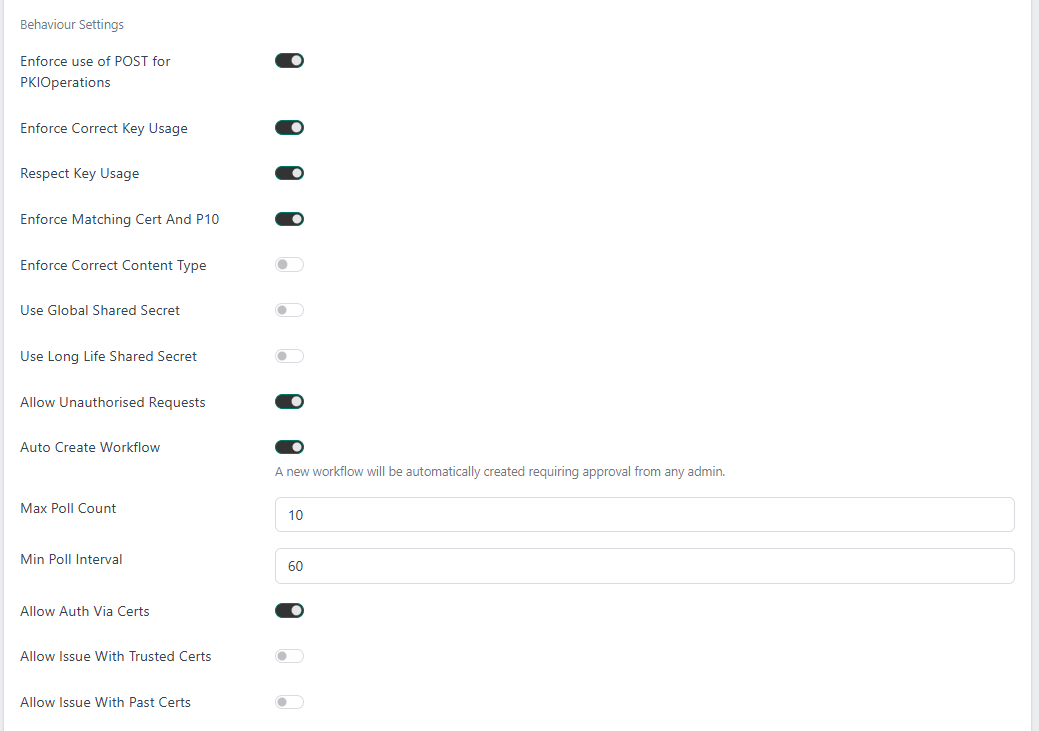
Enforce use of POST for PKIOperations. If enabled, the SCEP service will reject PKIOperation (used when requesting certificates) requests not using POST
-
Enforce Correct Key Usage. If enabled, the SCEP service will reject requests where the client certificate is missing the digitalSignature key usage
-
Respect Key Usage. If enabled, the SCEP service will attempt to encrypt responses with the shared secret if the keyEncipherment key usage is not present on the client certificate
-
Enforce Matching Cert And P10. If enabled, the SCEP service will reject requests where the subject name and public key in a self-signed client certificate do not match those found in the PKCS#10 request
-
Enforce Correct Content Type. If enabled, the SCEP service will reject requests using a non-standard content type
-
Use Global Shared Secret. If enabled, the SCEP service will only authorise any requests using the configured global shared secret
-
Use Long Life Shared Secret. If enabled, the SCEP service will allow shared secrets to be reused forever (or until revoked) by the sender that originally used the secret
-
Allow Unauthorised Requests. If enabled, the SCEP service will trigger the configured workflow instead of rejecting unauthorised requests, allowing them to be manually approved
-
Auto Create Workflow. If enabled, the workflow to capture unauthorised requests will be automatically created
-
Max Poll Count. Set the maximum number of times that a client may poll for an update on the certificate issuance status. Once this number is exceeded the client will receive a failure response
-
Min Poll Interval. This is the minimum time in seconds between polls. If a client polls more frequently than this period they will receive a failure response with the remaining wait time in the error message
-
Allow Auth Via Certs. If enabled, requests can be authorised by a trusted certificate, without requiring a shared secret. This only applies to renewal requests by default, unless Allow Issue With Past Certs is also enabled
-
Allow Issue With Past Certs. If enabled alongside Allow Auth Via Certs, clients are allowed to request new certificates using a trusted certificate without a shared secret, instead of just being able to renew certificates
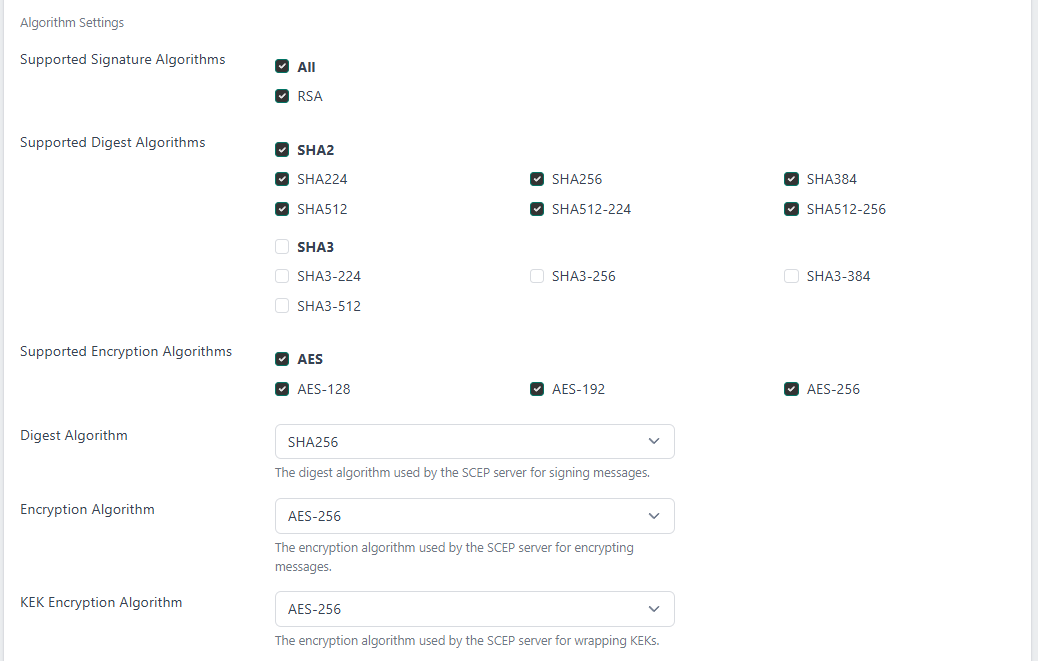
- Supported Signature Algorithms. Signing algorithms that must be used by the client
- Supported Digest Algorithms. Digest algorithms that must be used by the client
- Supported Encryption Algorithms. Encryption algorithms that must be used by the client
- Digest Algorithm. The digest algorithm used by the server for responses
- Encryption Algorithm. The encryption algorithm used by the server for responses encrypted with certificates
- KEK Encryption Algorithm. The encryption algorithm used by the server for responses encrypted with the challenge password
Click Add
Editing a Service
To edit a service, click the service and choose View/Edit:
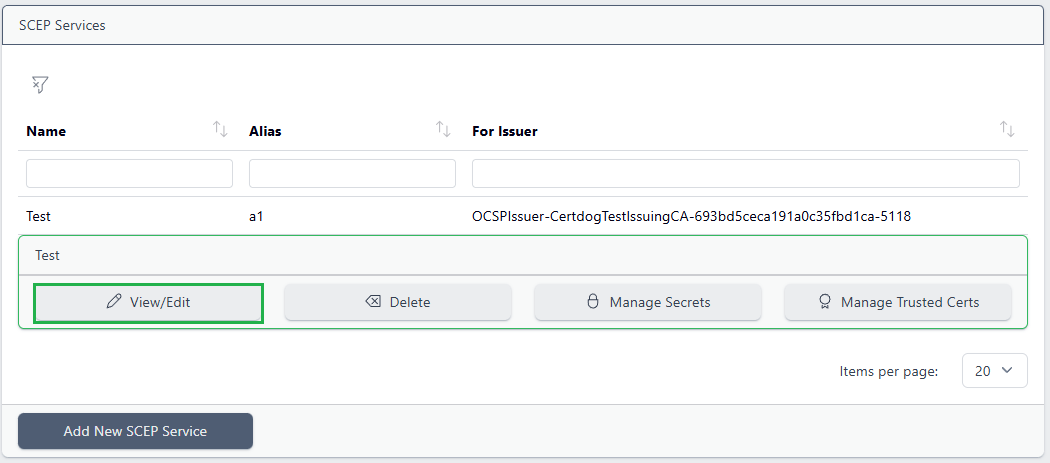
The information previously entered will be displayed and can be edited. Note that if Auto Generate Credentials option was previously set, the created Team and User IDs will now be displayed and can be viewed:

Click Update to save the new settings
Disabling a Service
From the SCEP menu, select the service and choose View/Edit
Uncheck the Enabled button
If a client makes a request when the service is disabled all requests will be rejected
Deleting a Service
From the SCEP menu, select the service and choose Delete
Click Yes to confirm
Handling Unauthorised Requests
When the Allow Unauthorised Requests setting is disabled, Certdog will deny any SCEP request without a valid token or a trusted certificate
You can optionally allow processing of unauthorised requests by toggling the Allow Unauthorised Requests setting, as described above. By default, this will allow all unauthorised requests, without any further checks or form of approval
To add extra checks or require approval in Certdog, you can use Workflows. When creating a SCEP server, you have the option of enabling Auto Create Workflow if unauthorised requests are allowed. This will create a workflow which matches the SCEP service’s user, and requires all certificate requests to be approved by an admin
You can edit the auto-created workflow after the SCEP service is created, or you can create your own workflow instead. You may want to consider the following when using workflows with SCEP:
- The workflows will not update when the SCEP server is updated - if you change the user, the workflow may no longer match SCEP requests
- To prevent a certificate from being issued, you need to use a workflow action capable of interrupting the request. Currently, this includes Obtain Approval and Run Script with Use As Approval enabled
- The auto created workflow only matches against the user, so it is advised to use a separate user specifically for SCEP when you are using the default workflow
- If you want to be as specific as possible, you can match against the user, team, and issuer used by the SCEP server
When Allow Unauthorised Requests is enabled, pre-authorised requests (those using secrets or trusted certificates) indicate to Certdog that workflows which could interrupt this request should be bypassed. For added security, a user must be explicitly given the ability by checking the Can Bypass Interruptible Workflows option. The auto-created user for SCEP has this option enabled, but if you are using your own user, you must enable it yourself. If this is not enabled for the SCEP user, all pre-authorised requests will also go through the workflows, often preventing them from being issued or requiring approval for all of them
This does mean that you cannot run interruptible (obtain approval or script-as-approval) workflows on pre-authorised requests when Allow Unauthorised Requests is enabled. There may be alternative solutions depending on your use case. For example, if you can use two different aliases, you can split your SCEP server into two parts - one for authorised requests, and one for unauthorised requests
Managing Secrets
Secrets are used to allow new clients to request certificates, and optionally can be required for renewing certificates too. It is expected that these secrets are distributed out-of-band to client devices as needed. Depending on configuration, these may be single-use or long-lived.
Note if Use Global Shared Secret is enabled, all secrets supplied will be tested against the configured global shared secret, and not against any of the other stored secrets.
Adding a New Secret
Too add a secret, select the SCEP service:
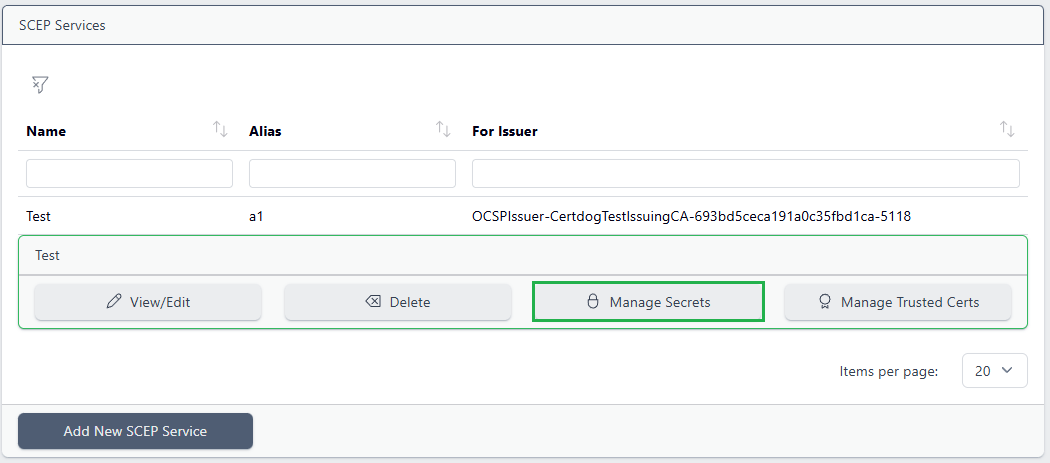
and choose Manage Secrets:

Either enter a secret value, or click Generate Random Secret (generating a secret value on your behalf). Click the button to the right of the New Secret text box to copy the value
This value will not be displayed again and must be securely passed to the client
Once copied, click Add Secret
Deleting Secrets
Select the SCEP service and choose Manage Secrets:
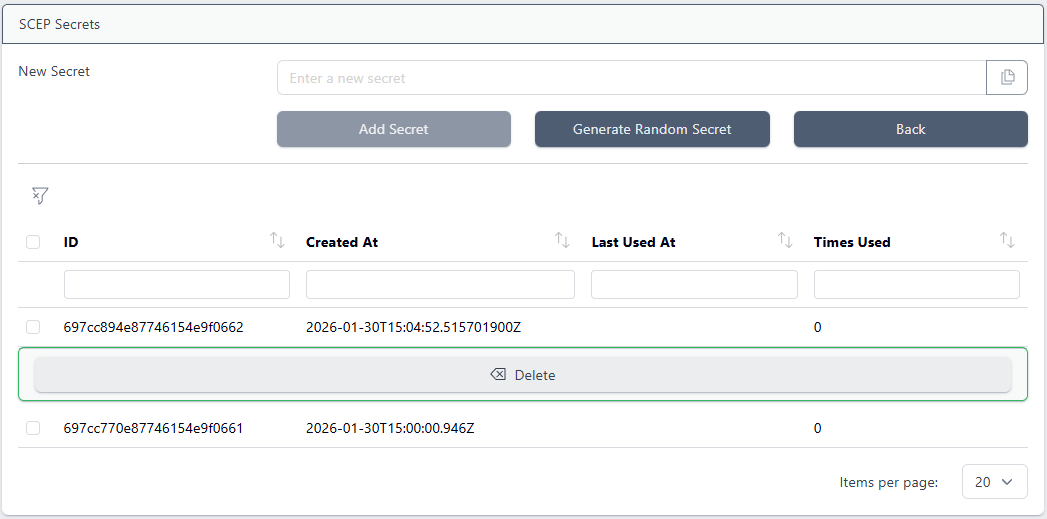
Select the secret to delete and click Delete
Trusted Certificates
Trusted certificates can be used to authorise client devices either in addition to or instead of a shared secret. A client certificate is authorised if it matches a trusted certificate or it was issued by a trusted certificate.
This allows authorising clients which cannot use shared secrets without manually authorising requests. Additionally, clients can be moved from an old issuer to a new issuer automatically, by trusting all certificates (clients) issued by the previous issuer.
Note because a trusted certificate can be used multiple times to request a new certificate, unlike when using single-use secrets, a malicious client can act as an issuer if marked as trusted.
Add a Trusted Certificate
Select the SCEP service:
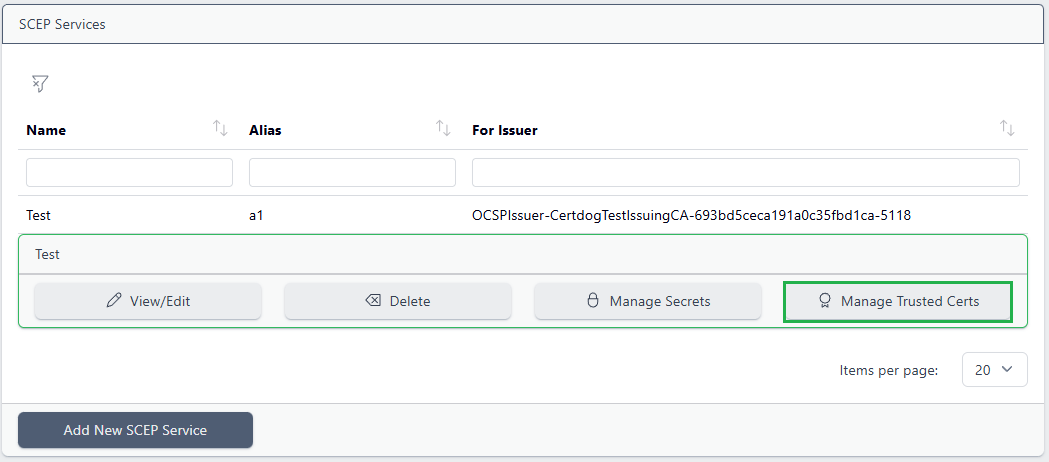
and choose Manage Trusted Certs:
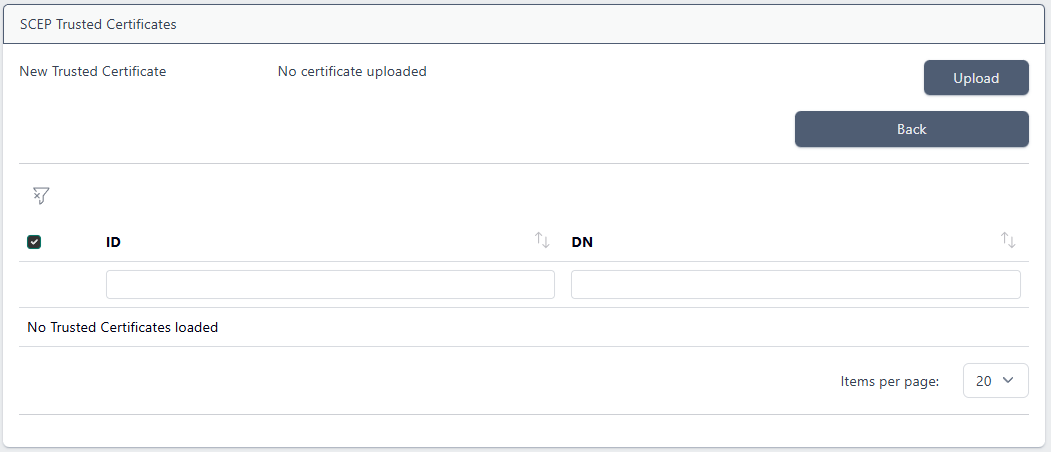
Click Upload and navigate to a PEM formatted certificate, then click Add Trusted Certificate
Delete a Trusted Certificate
Select the SCEP service and choose Manage Trusted Certs:
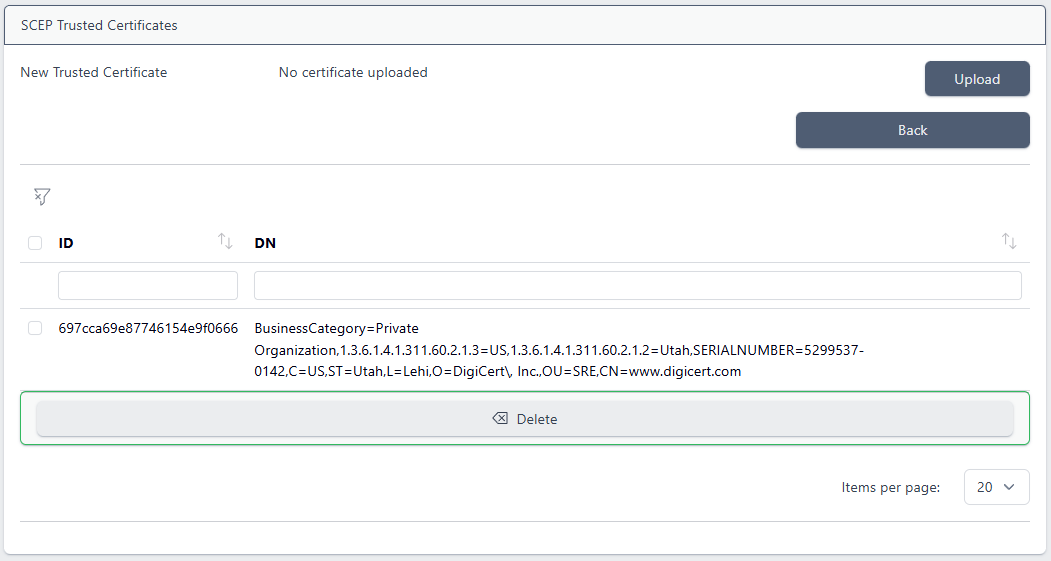
Select the certificate to be deleted and click Delete
Troubleshooting
Some common issue(s) are listed below to help if you are having problems with your SCEP server.
If none of these fix your issue, please contact support for help.
Authorised Requests Still Require Approvals
You may notice requests being marked for approval or denied despite trusted certificates or shared secrets being accepted by the SCEP server.
This can happen if your SCEP user does not have the required permissions to bypass workflows, resulting in all requests (even authorised requests) getting stopped by the workflow which flags them for approval.
To fix this, select Users from the menu, select your user, click View/Edit, check Can Bypass Interruptible Workflows, and then click “Update”.
Unauthorised Requests Do Not Require Approvals
When the Allow Unauthorised Requests option is enabled by itself, all requests will be accepted. You must rely on Workflows to capture unauthorised requests if you want to use approvals or run further checks.
When Auto Create Workflow is enabled, a Workflow is created which matches the SCEP user and requires approval from any admin.
If no such Workflow exists, or it is configured incorrectly, you can create one or update the current one to run on Certificate Requested, match your SCEP user, and use Obtain Approval as its action.