Scripts
This feature is available from Certdog 1.17
Certdog supports the running of scripts as part of Workflows and Tasks
Scripts can be used to carry out operations post certificate processing (request, issuance, revocation etc.), or act as approvers, making decisions on whether certificates may be issued or revoked. Or run regular tasks.
Some examples of usage include:
-
Creating a ticket (in JIRA or ServiceNow etc.) when a certificate is nearing expiry
-
Confirming that the SANs being requested are valid (e.g. registered in DNS) and approving or denying requests
-
Push certificate data to another system or database
-
Synchronising an AD CS database with the Certdog inventory
-
Generating weekly reports
Scripts can be Shell (Linux) or PowerShell (Windows/Linux) and must be uploaded prior to being specified in a Workflow
Adding a Script
From the menu, select Scripts and then click Add New Script:
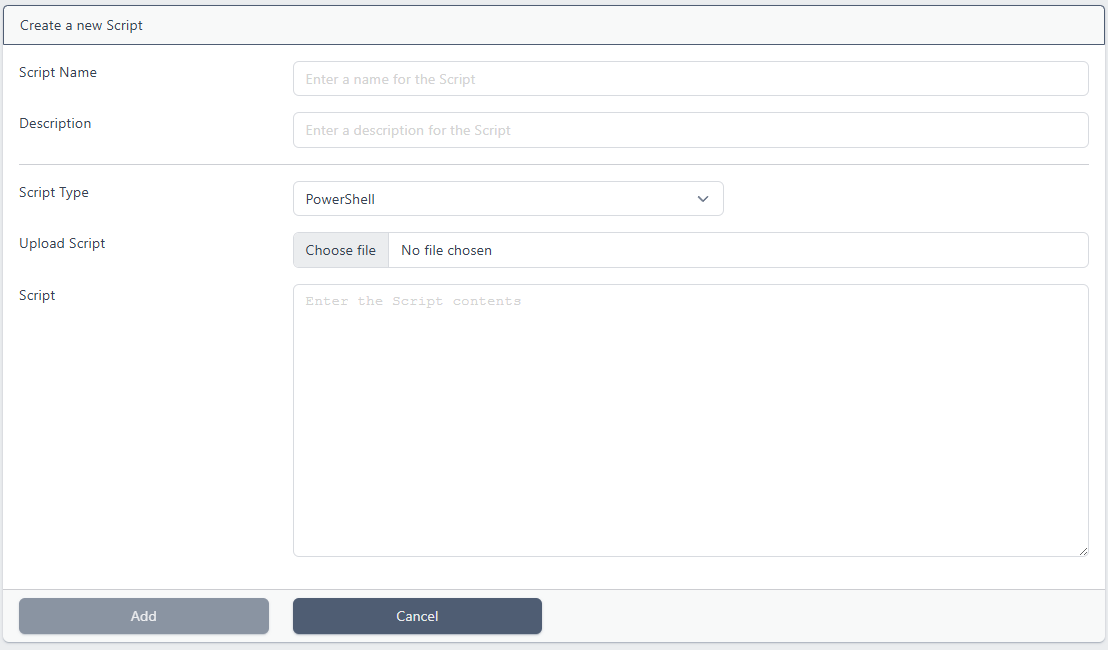
The following information must then be entered:
-
Script Name. Enter a name for the script (this does not have to be the actual PowerShell or Shell script name
-
Description. Enter a description (optional)
-
Script Type. Choose either Shell or PowerShell. This determines what the script will be run with. In the Settings menu, there are entries for PowerShell Processor and Shell Processor which are set to powershell.exe and sh by default, but these can be updated if required
-
Upload Script. If the script resides on disk, click Choose file to navigate to this script, alternatively the script can be typed/pasted in to the Script section
Note: Choosing a script in this way uploads the contents to the system. The file chosen will not be executed itself. If any changes to that file are made, it must be re-uploaded. This is to prevent uncontrolled external changes
-
Script. Type or paste in the script data here. If Upload Script is chosen, the script contents will be displayed here. The script can be edited here now and when managing scripts later
Click Add
The script will now be available as an optional script in Workflows and Tasks
Logging
Output from scripts is written to the local text log (.e.g. c:/certdog/logs/ezsign.log). For example, the following PowerShell:
Write-Host "-- Import from ADCS Starting --------------------"
Write-Host "   Importing 56 certificates from scca1.cromer.org\CA1..."
Write-Host "-------------------------------------------------"
Would result in the following log entries in the text logs:
2026-07-02 10:03:00.013 DEBUG certdogapi - [system] Running Task 'Import from ADCS'.
2026-07-02 10:03:00.037 DEBUG certdogapi - [system] Running script 'Import from ADCS'. Command: powershell.exe -File C:\certdog\scripts\57892009024066169511.ps1 -apiToken [APITOKEN] -apiUrl https://cd.cromer.org/certdog/api/
2026-07-02 10:03:00.287 DEBUG certdogapi - Script 'Import from ADCS' exited with code '0' output:
-- Import from ADCS Starting --------------------
   Importing 56 certificates from scca1.cromer.org\CA1...
------------------------------------------------
The log entries available via the UI (and API) contain fewer details (not the script output), to avoid clutter. E.g.
2026-07-02 10:03:00 Running Task 'Import from ADCS'.
2026-07-02 10:03:00 Running script 'Import from ADCS'. Command: powershell.exe -File C:\certdog\scripts\57892009024066169511.ps1 -apiToken [APITOKEN] -apiUrl https://cd.cromer.org/certdog/api/
Editing/Deleting Scripts
From the menu, select Scripts:
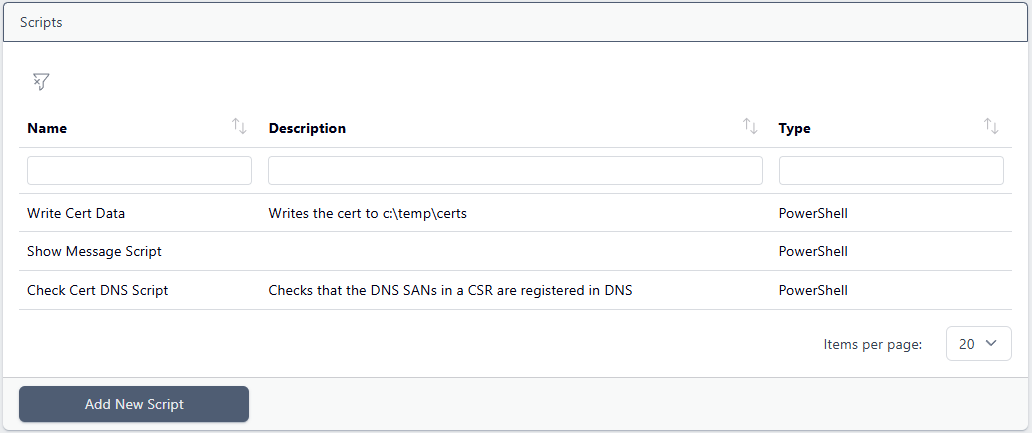
Clicking on a script will preview the script contents as well as provide the View/Edit and Delete options:
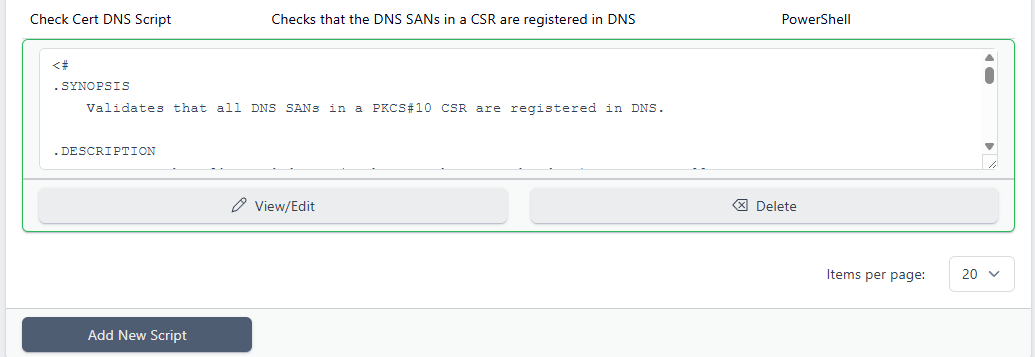
To delete, click Delete. To edit click View/Edit:
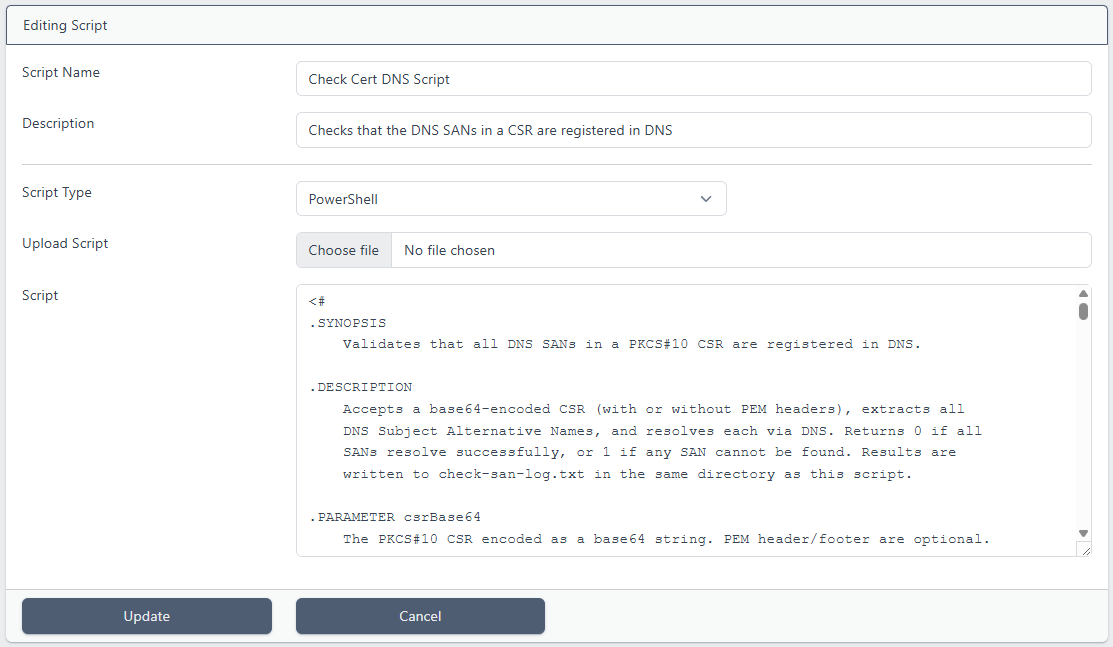
The script may be edited directly in the Script section or a new script uploaded.
When done, click Update
Notes on Developing Scripts
Whether activated via a Workflow or Task, scripts will be run by the same account that is running the Certdog service. In Windows this will, by default be LOCAL SYSTEM (the account the Certdog Service is running under). On Linux this will be whatever account has been configured to run the service
Therefore, the scripts will only have the same permissions as those accounts
The scripts execute under the LOCAL SYSTEM account and therefore inherit its restricted environment. Because the SYSTEM PATH is limited, any calls to external utilities or components may require fully qualified paths. Failures arising from incomplete PATH resolution may appear as scripts running successfully for an interactive user but failing when executed within certdog
When uploading scripts be sure to examine contents and satisfy yourself that the script will be safe to run before committing. Especially if uploading one not developed by trusted parties. The purpose of scripts being uploaded in this way is intentional, to force a review and prevent scripts from being tampered with or swapped (e.g. if they were held on the file system)
When a script is specified in a Workflow or Task, several parameters may be passed. E.g.
[APITOKEN]- A temporary API authentication token that will enable the script to authenticate back to the Certdog API (directly or via the Certdog PowerShell module), enabling it to obtain additional information (or make updates, if permissions allow)
[CERTDATAB64]- The certificate data in Base64 format (without any header and footer)
[CERTSUBJECT]- The DN of the certificate
etc.
What parameters are available depend on if running as a Script or Workflow. See Parameters for the full list
For example, if our PowerShell script accepted the following parameters:
param (
    [Parameter(Mandatory = $true]
    [string]$certId,
    [Parameter(Mandatory = $true]
    [string]$certSubject,
    [Parameter(Mandatory = $true]
    [string]$caller
)
These parameters could be passed in the correct order. e.g. [CERTID] [CERTSUBJECT] "Workflows"
Alternatively parameter names can also be specified, in which case the order would not matter e.g. -certId [CERTID] -caller "Workflows" -certSubject [CERTSUBJECT]
See Workflows for more information on configuring scripts to run as part of a workflow and Scripts for running regular tasks
You can also use the Certdog PowerShell Module within a script. The module is always written to the scripts folder before a PowerShell script is run, so you can import the module using a relative path.
param(
    [Parameter(Mandatory = $true)]
    [string] $ApiToken
)

Import-Module .\certdog-module.psm1

Set-ApiToken -authToken $ApiToken
...
By default, the API URL is formed by adding /api/ onto the system URL, and this is written to a configuration file picked up by the PowerShell module so does not need to be explicitly specified when using the PowerShell module. However, it is also available as a parameter (e.g. when calling the REST API directly) or can be provided explicitly
When using the PowerShell module you can override this URL as described in the Certdog PowerShell Module documentation. E.g.
Set-ApiUrl -url "https://path/to/your/api/"