EST
This feature is available from certdog 1.18
Certdog supports the EST protocol - Enrollment over Secure Transport (RFC7030)
EST lets devices such as routers, switches, firewalls and IoT devices request and renew their own certificates over HTTPS. Many network devices support EST natively, and it is the recommended replacement for SCEP
Multiple EST services can be created - each with a different configuration. This allows for multiple setups that may provide different certificate types, from different CAs, to different groups of devices
Overview
Each EST service:
- Issues certificates from one Certificate Issuer. Devices obtain that issuer’s CA certificates from the service
-
Has its own URL, made from an alias. For example, a service with the alias routers is at:
https://<server>:8443/.well-known/est/routersDevices add the EST operation to this URL themselves (e.g.
.../routers/simpleenroll) - Decides how devices authenticate. The recommended (and default) setup is that each device is given its own device secret. The device uses its secret once, to obtain its first certificate, and then renews with that certificate
- Issues certificates to a team and user that are created for the service, so all certificates issued over EST can be found, reported on and managed in certdog like any other certificate
The following EST operations are supported:
| Operation | Purpose |
|---|---|
/cacerts | Returns the CA certificates (the issuing CA first). No authentication required |
/simpleenroll | Request a new certificate |
/simplereenroll | Renew a certificate, authenticating with the current certificate |
/serverkeygen | certdog generates the key and returns it with the certificate (when enabled) |
/csrattrs | Returns the attributes devices should include in their requests (when configured) |
The EST Port
EST is served by its own HTTPS connector, on port 8443 by default (or the next free port if certdog itself uses 8443). This connector asks devices for a TLS client certificate, which is how devices authenticate when they renew, without affecting the certdog console or API
Make sure devices can reach this port, e.g. open it on any firewalls between the devices and certdog
Note that the EST URL is always at the root of the server (
/.well-known/est) as required by RFC 7030. It is not under/certdog
Configuration
From the menu, select Interfaces and then choose EST
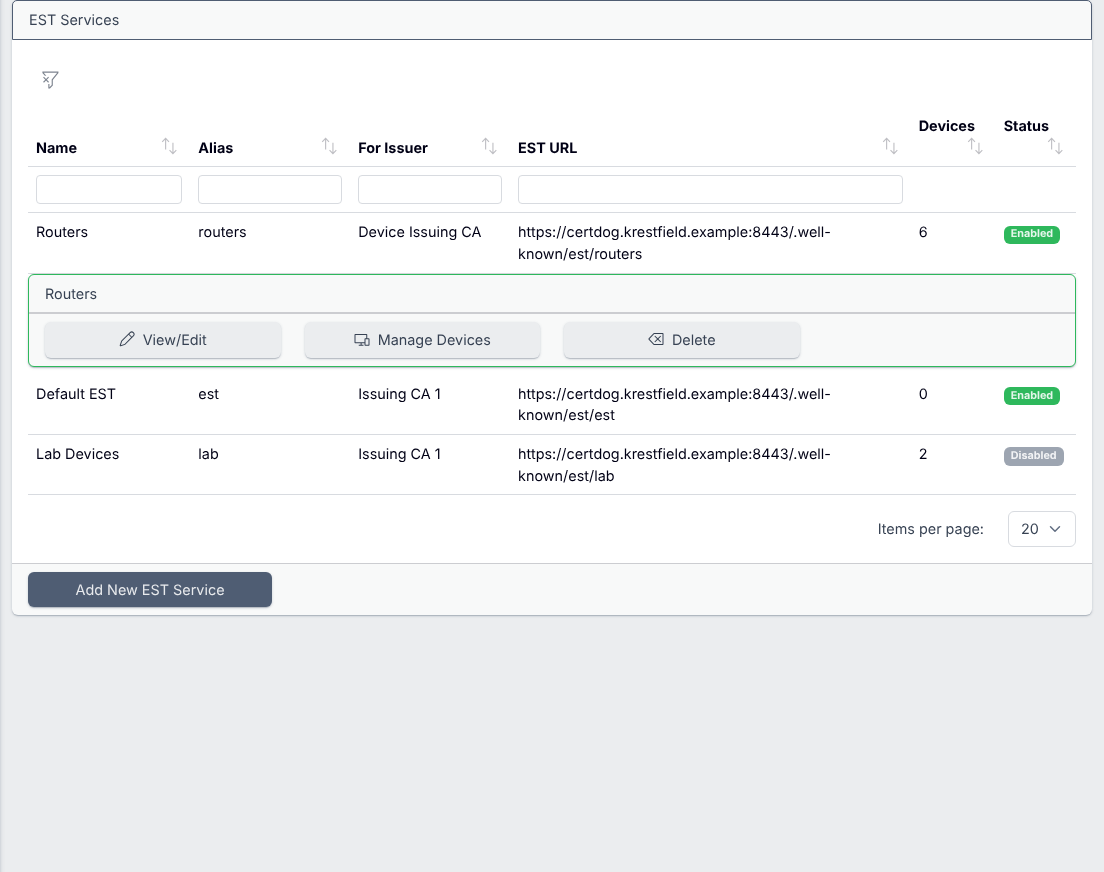
Click Add New EST Service
The recommended settings are already selected. In most cases you only need to enter a name and alias and choose the certificate issuer
Service and Certificates
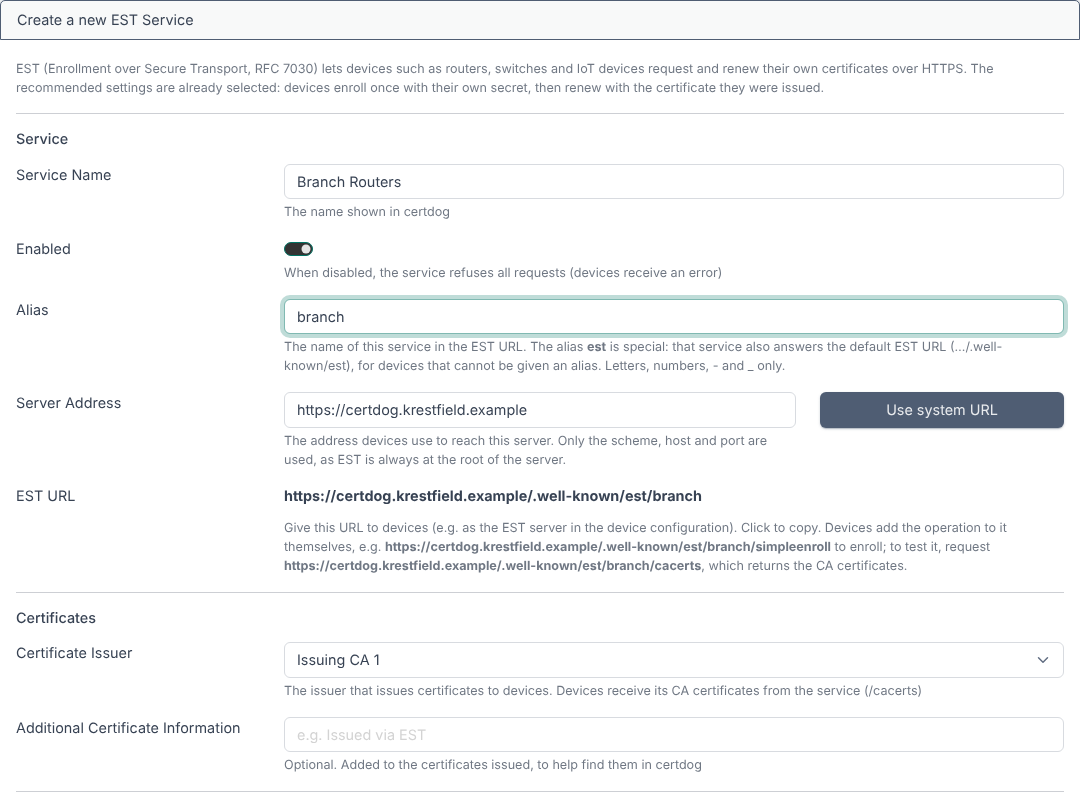
- Service Name. Enter a name. This identifies the service in certdog. Devices do not see this value
- Enabled. This enables the service. When disabled, devices receive an error for all requests
- Alias. The name of this service in the EST URL. Letters, numbers,
-and_only. Each service must have its own alias. The alias est is special: the service with this alias also answers the default EST URL (https://<server>:8443/.well-known/est) for devices that cannot be configured with an alias - Server Address. The address devices use to reach certdog. This is pre-populated from the System URL. Only the scheme, host and port are used. If devices reach certdog using a different DNS name, or via a load balancer, update it here. Include the EST port if it is not the default HTTPS port (e.g.
https://certdog.example.com:8443). Click Use system URL to revert to the stored system URL - EST URL. This is calculated from the Server Address and Alias, and is the URL to configure on devices. Click it to copy it
- Certificate Issuer. The issuer that issues certificates to devices. Devices receive this issuer’s CA certificates from
/cacerts - Additional Certificate Information. Optional. Any information entered here is added to the certificates issued, to help find them in certdog
How Devices Authenticate
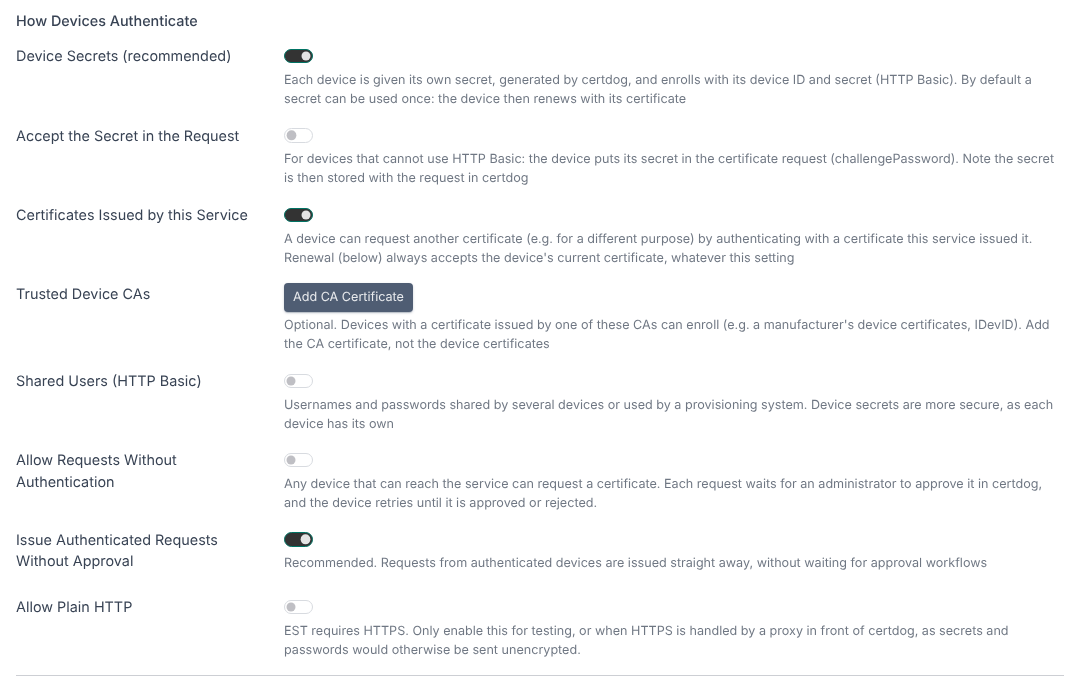
- Device Secrets (recommended). Each device is given its own secret, generated by certdog (see Managing Devices). The device enrolls using its device ID as the username and its secret as the password (HTTP Basic authentication). By default a secret can only be used once: the device then renews with the certificate it was issued
- Accept the Secret in the Request. For devices that cannot use HTTP Basic authentication. The device puts its secret in the certificate request (the challengePassword attribute) instead. Note that the secret is then stored with the request in certdog
- Device ID Subject Field. When Accept the Secret in the Request is enabled, the field of the request’s subject that holds the device ID (e.g.
CN=router-0001). One of CN, SERIALNUMBER, UID, E or OU - Certificates Issued by this Service. A device can request another certificate (e.g. for a different purpose) by authenticating with a certificate this service issued it. Renewal always accepts the device’s current certificate, whatever this setting
- Trusted Device CAs. Optional. Devices with a certificate issued by one of these CAs can enroll, for example a manufacturer’s device certificate (IDevID). Click Add CA Certificate and add the CA certificate (not the device certificates)
- Shared Users (HTTP Basic). Usernames and passwords that can be shared by several devices, or used by a provisioning system. Click Add User to add each one. Passwords must be at least 12 characters. Device secrets are more secure, as each device has its own
- Allow Requests Without Authentication. Any device that can reach the service can request a certificate. Each request waits for an administrator to approve it in certdog, and the device retries until it is approved or rejected. See Unauthenticated Requests
- Issue Authenticated Requests Without Approval. Recommended. Requests from authenticated devices are issued straight away, without waiting for any approval Workflows
- Allow Plain HTTP. EST requires HTTPS. Only enable this for testing, or when HTTPS is handled by a proxy in front of certdog, as secrets and passwords would otherwise be sent unencrypted
Renewal and Server Key Generation
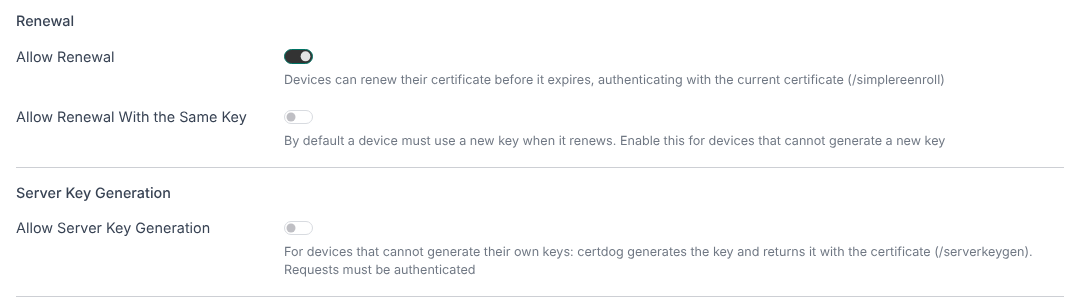
- Allow Renewal. Devices can renew their certificate before it expires, authenticating with their current certificate (
/simplereenroll) - Allow Renewal With the Same Key. By default a device must use a new key when it renews. Enable this for devices that cannot generate a new key
- Allow Server Key Generation. For devices that cannot generate their own keys. certdog generates the key and returns it with the certificate (
/serverkeygen). These requests must be authenticated - CSR Generator. Shown when server key generation is enabled. The CSR Generator that sets the type and size of the keys generated
Advanced
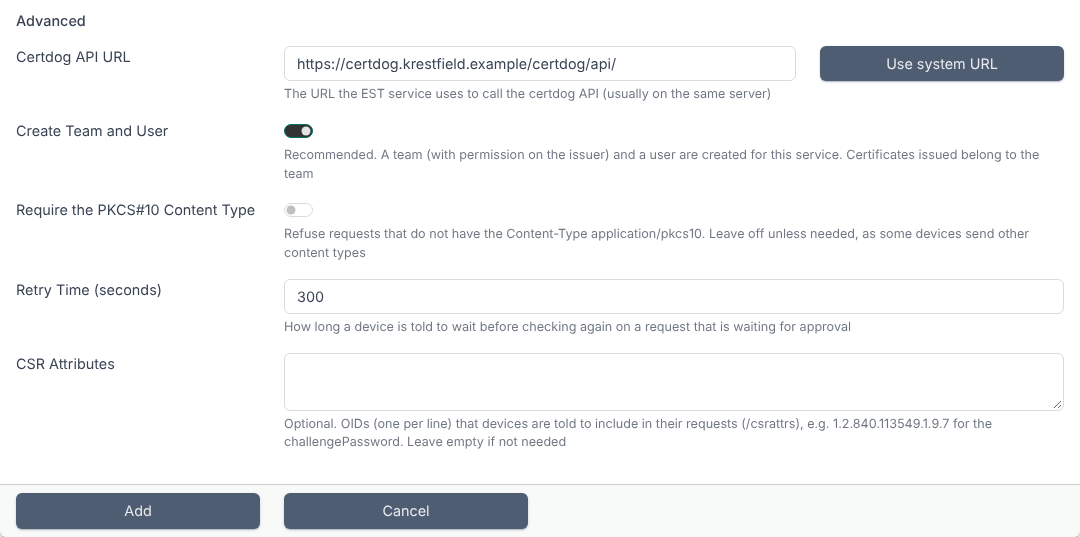
- Certdog API URL. The URL the EST service uses to call the certdog API. This is usually on the same server and is pre-populated. If certdog is clustered this may need to be updated. Click Use system URL to revert to the stored system URL
- Create Team and User. Recommended. A team (with permission on the certificate issuer) and a user are created for this service, and certificates issued belong to the team. If this is unchecked, choose an existing Team and User. The team must have permission on the issuer and the user must be a member of the team. If Issue Authenticated Requests Without Approval is set, the user must also be allowed to bypass approval workflows
- Require the PKCS#10 Content Type. Refuse requests that do not have the content type
application/pkcs10. Leave this off unless needed, as some devices send other content types - Retry Time (seconds). How long a device is told to wait before checking again on a request that is waiting for approval. The default is 300
- CSR Attributes. Optional. OIDs (one per line) that devices are told to include in their requests (
/csrattrs), e.g.1.2.840.113549.1.9.7for the challengePassword. Leave empty if not needed
Click Add
Managing Devices
When Device Secrets are enabled, each device that will enroll must be added to the service. From the EST menu, select the service and choose Manage Devices
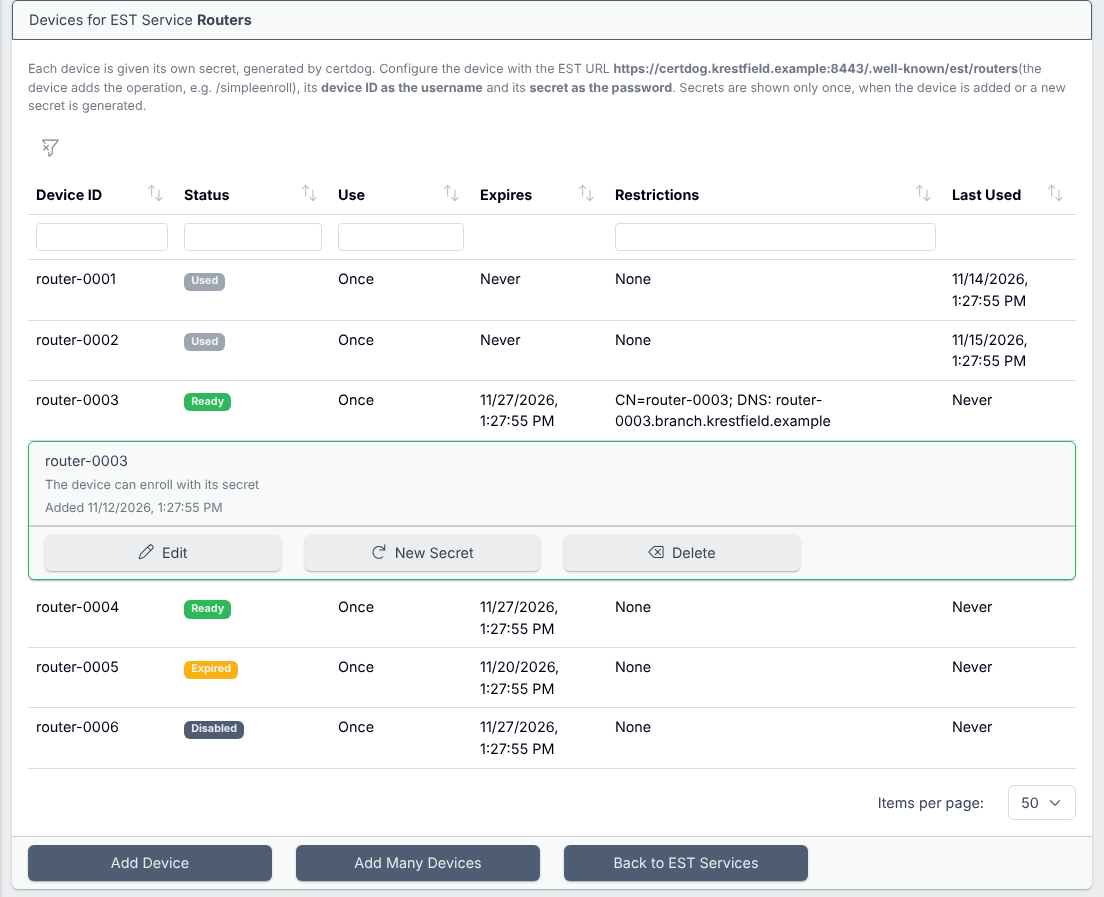
Each device has a Status:
| Status | Meaning |
|---|---|
| Ready | The device can enroll with its secret |
| Pending | The device has used its secret for a request that is waiting for approval. It can repeat the same request |
| Used | The secret has obtained a certificate. The device now renews with that certificate. Generate a new secret to onboard it again |
| Expired | The secret has expired. Change the expiry or generate a new secret to onboard the device |
| Disabled | The secret cannot be used. Edit the device to enable it |
Click a device to see more details, including a link to the certificate it obtained
Adding a Device
Click Add Device
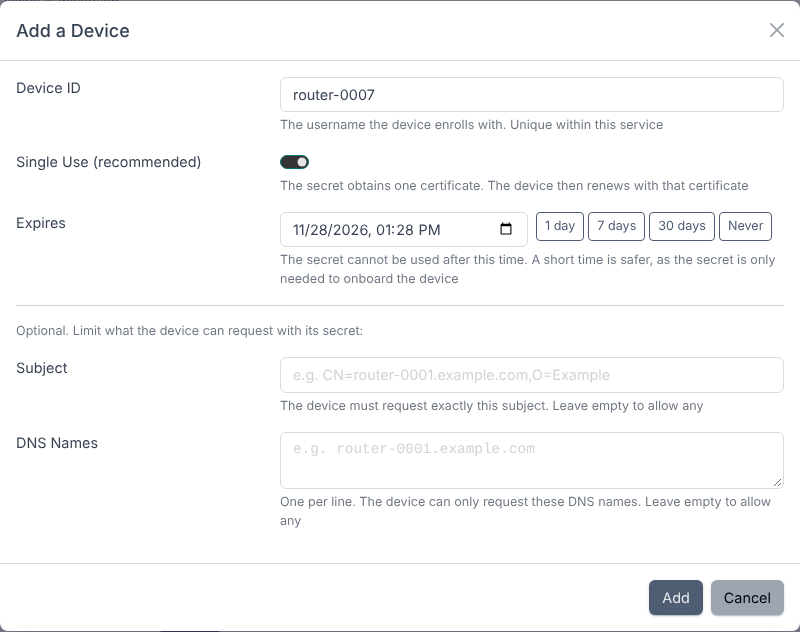
- Device ID. The username the device enrolls with. This must be unique within the service
- Enabled. When disabled, the secret cannot be used
- Single Use (recommended). The secret obtains one certificate. The device then renews with that certificate. If this is unchecked the secret can be used again, so anyone who learns it can obtain certificates for this device until it expires
- Expires. The secret cannot be used after this time. A short time is safer, as the secret is only needed to onboard the device. Use the buttons to set 1, 7 or 30 days, or Never
- Subject. Optional. The device must request exactly this subject (e.g.
CN=router-0007). Leave empty to allow any - DNS Names. Optional. One per line. The device can only request these DNS names. Leave empty to allow any
Click Add. The device’s secret is displayed:
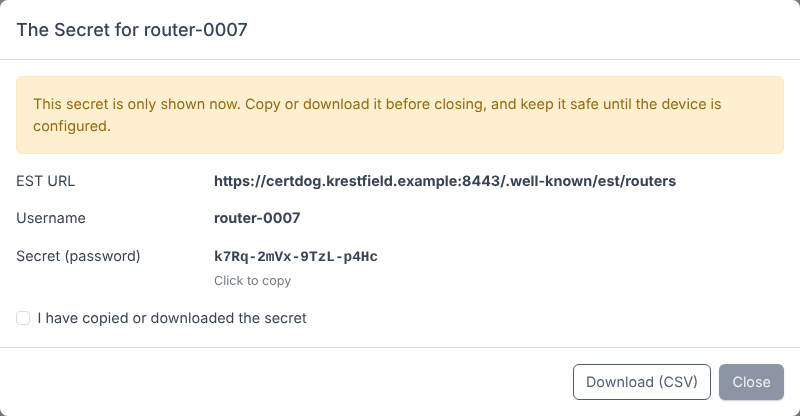
The secret is only shown once. Copy it, or click Download (CSV), before closing. Certdog stores only a hash of the secret, so it cannot be displayed again. If it is lost, generate a new secret
Configure the device with the EST URL, the device ID as the username and the secret as the password
Adding Many Devices
To add several devices at once, click Add Many Devices
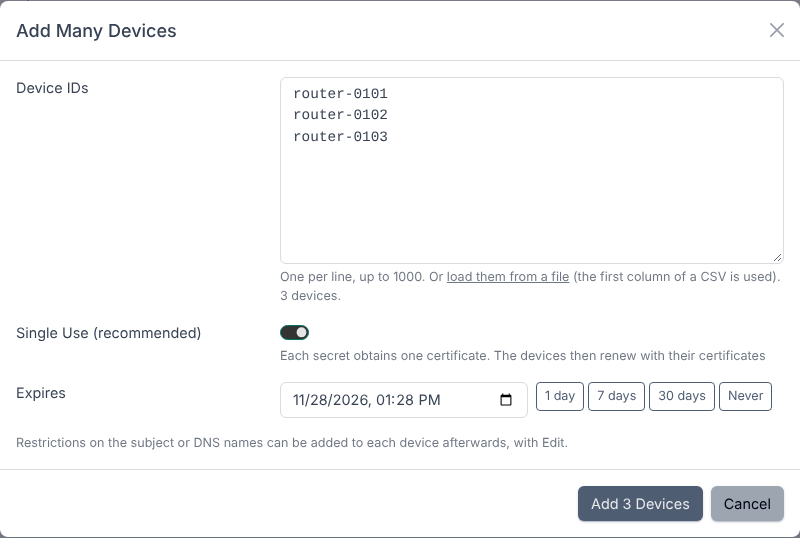
Enter the device IDs, one per line, or click load them from a file to load them from a text or CSV file (the first column of a CSV file is used). Set Single Use and Expires as above, then click Add
The secrets for all of the devices are displayed. Click Download (CSV) to save them, with the EST URL, for configuring the devices
Restrictions on the subject or DNS names can be added to each device afterwards, with Edit
Generating a New Secret
To onboard a device again (e.g. after it has been reset, or if its secret was lost), select the device and choose New Secret. A new secret is generated and displayed, and the previous secret stops working
Editing and Deleting Devices
Select the device and choose Edit to change whether it is enabled, single use, its expiry or its restrictions
Select the device and choose Delete to remove it. Its secret stops working. A certificate it has already obtained is not affected (revoke it in certdog if needed)
Unauthenticated Requests
When Allow Requests Without Authentication is enabled, any device that can reach the service can request a certificate. These requests are not issued straight away: the device is told to retry later (after the Retry Time), and the request waits for an administrator to approve it
When the service is created, a workflow is created that requires an administrator to approve these requests (Create Approval Workflow). Alternatively, uncheck this and choose an existing Workflow. Without an approval workflow, unauthenticated requests would be issued without approval
Approve or reject the requests from the Approvals menu. The device obtains its certificate the next time it retries after the request is approved
Editing a Service
From the EST menu, select the service and choose View/Edit
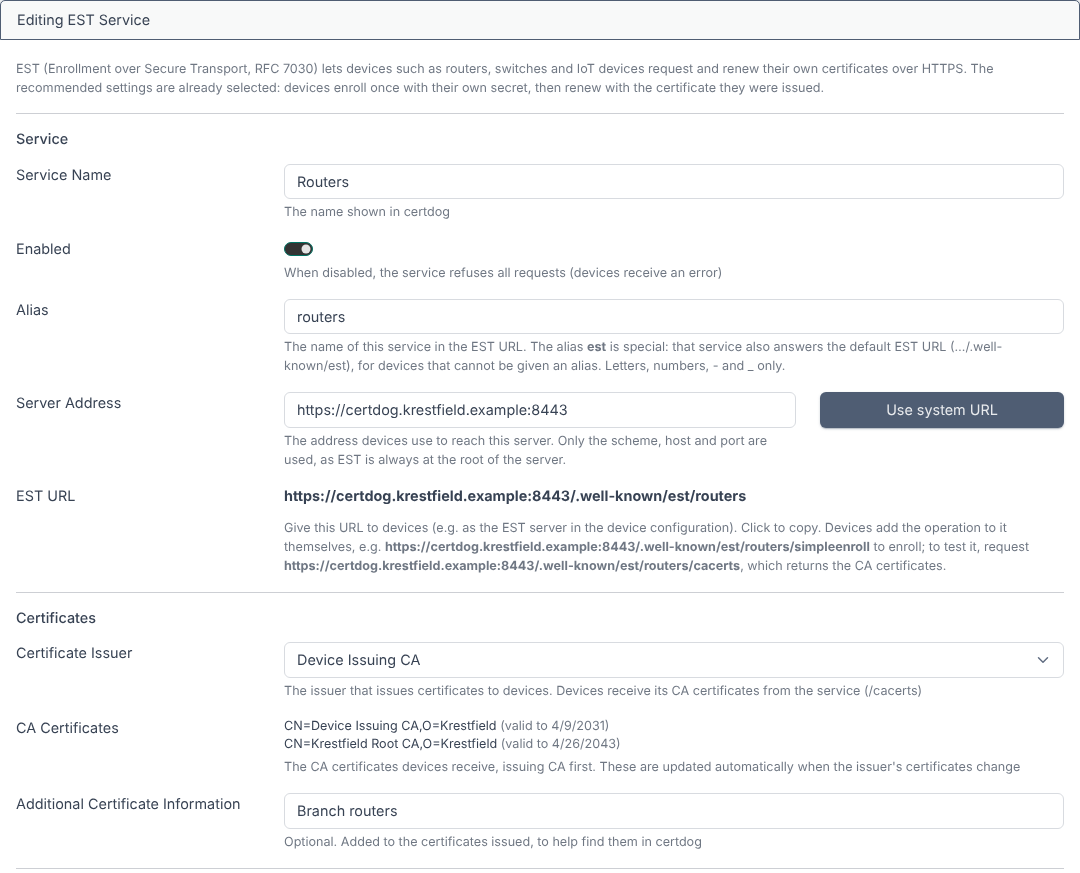
The settings previously entered are displayed and can be changed. The CA Certificates that devices receive are also listed. These are updated automatically when the issuer’s certificates change
In the Advanced section, the team and user the service uses are shown:
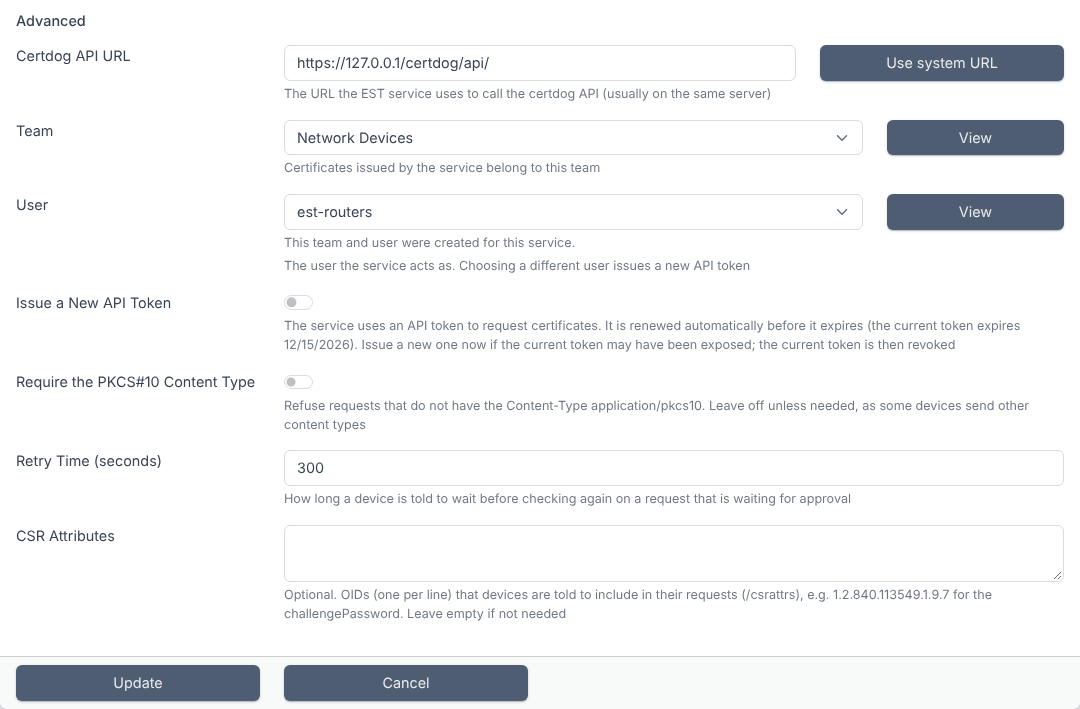
- Team and User. Click View to view or edit them. Choosing a different user issues a new API token
- Issue a New API Token. The service uses an API token to request certificates. It is renewed automatically before it expires. Check this to issue a new token now, if the current token may have been exposed. The current token is then revoked
Click Update to save the new settings
Disabling a Service
From the EST menu, select the service and choose View/Edit
Uncheck Enabled and click Update
All requests to a disabled service are rejected. Its devices and their secrets are kept
Deleting a Service
From the EST menu, select the service and choose Delete
Click Yes to confirm
Devices can no longer enroll with the service, and its devices and their secrets are deleted. Certificates already issued are not affected
Testing a Service
The following examples use curl and openssl to test a service with the alias routers and a device router-0007. EST messages are base64 encoded
Obtain the CA certificates
curl https://certdog.example.com:8443/.well-known/est/routers/cacerts | base64 -d > cacerts.p7
openssl pkcs7 -inform DER -in cacerts.p7 -print_certs -out cacerts.pem
Enroll with a device secret
openssl req -new -newkey ec -pkeyopt ec_paramgen_curve:prime256v1 -nodes -keyout router.key -subj "/CN=router-0007" -outform DER -out router.csr
base64 router.csr > router.b64
curl --cacert cacerts.pem --user router-0007:<secret> -H "Content-Type: application/pkcs10" --data-binary @router.b64 https://certdog.example.com:8443/.well-known/est/routers/simpleenroll | base64 -d > router.p7
openssl pkcs7 -inform DER -in router.p7 -print_certs -out router.pem
If
--cacertfails, the EST port’s TLS certificate was not issued by the CA returned by/cacerts. Use the CA that issued certdog’s TLS certificate instead
Renew with the current certificate
openssl req -new -newkey ec -pkeyopt ec_paramgen_curve:prime256v1 -nodes -keyout router-new.key -subj "/CN=router-0007" -outform DER -out renew.csr
base64 renew.csr > renew.b64
curl --cacert cacerts.pem --cert router.pem --key router.key -H "Content-Type: application/pkcs10" --data-binary @renew.b64 https://certdog.example.com:8443/.well-known/est/routers/simplereenroll | base64 -d > renewed.p7
The issued certificates can be found in certdog under the service’s team
REST API
EST services and their devices can also be managed with the REST API. See the API documentation (Swagger) on your certdog server for the details:
| Method | Path | Purpose |
|---|---|---|
| GET | /admin/est | List the EST services |
| POST | /admin/est/add | Add a service |
| GET | /admin/est/{id} | Get a service |
| PATCH | /admin/est/{id}/update | Update a service |
| DELETE | /admin/est/{id} | Delete a service |
| GET | /admin/est/{id}/devices | List a service’s devices |
| POST | /admin/est/{id}/devices/add | Add a device (returns its secret) |
| POST | /admin/est/{id}/devices/addmany | Add several devices (returns their secrets) |
| PATCH | /admin/est/{id}/devices/{deviceId}/update | Update a device |
| POST | /admin/est/{id}/devices/{deviceId}/newsecret | Generate a new secret |
| DELETE | /admin/est/{id}/devices/{deviceId} | Delete a device |