Keycloak OAuth 2.0 and OIDC Integration
This feature is available from certdog 1.15
Certdog supports authorization and authentication of users via OAuth 2.0 and OIDC services, including processing of group membership.
This document describes how to configure certdog to use Keycloak as the OAuth 2.0 and OIDC provider. For Microsoft Entra ID (formerly Azure AD), see OAuth 2.0 and OIDC Integration.
Enabling OAuth support does not disable the use of local or Active Directory accounts. I.e. all three authentication options can be enabled at the same time.
Details on how to enable this with Keycloak are given below. The steps are detailed but still, some familiarity with Keycloak is needed. If in any doubt, contact Krestfield Support who can assist with the setup process.
Before Starting
Access to a Keycloak server is required, with an administrator account that can create a Realm (or permissions to manage clients, client scopes, groups and users within an existing Realm). If another team manages Keycloak, they can follow the Configure Keycloak instructions below and provide the required values (e.g. [ISSUER-URI]) for importing into certdog.
The Keycloak server must be accessed over HTTPS. Both the certdog UI (via the browser) and the certdog service must trust the Keycloak server’s TLS certificate, as they each retrieve the issuer configuration from Keycloak. See Trust the Keycloak TLS Certificate for details.
Ensure that the correct URL has been configured for certdog (as described here) and ideally the final TLS certificates have been installed (as described here).
This is required as we will need to configure redirect URLs within Keycloak. These should be the final URLs that all users will access the system from.
When certdog is initially installed you may access at 127.0.0.1. But when completing the steps above you may configure a DNS entry to point to the certdog server. When you would access as something like https://certdog.domain.local. This would then be the URL to configure in the Keycloak settings below.
If you do not have a Keycloak server and would like to evaluate this feature, see Running a Keycloak Test Instance at the end of this document.
Configuring OAuth
To enable OAuth and OIDC support you must:
These steps are detailed in the next sections.
Configure Keycloak
The following steps are carried out from the Keycloak admin console, which is located at:
https://[keycloak hostname]:[port]/admin
E.g. https://keycloak.intserver.local:8443/admin
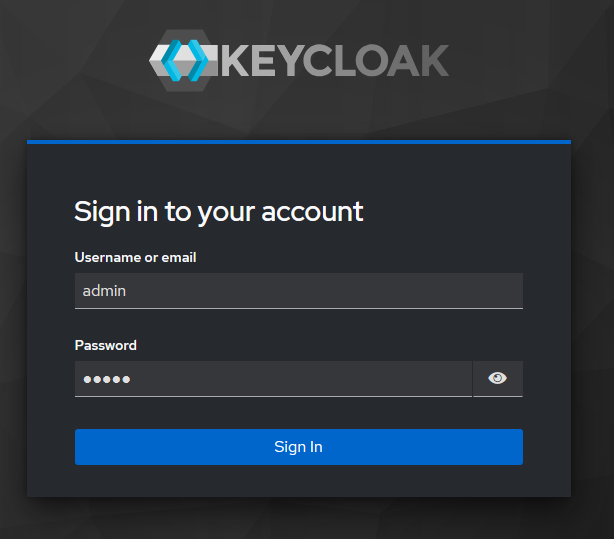
Sign in with your Keycloak administrator credentials:
Create a Realm
A Realm manages a set of users, groups and clients. A dedicated Realm for certdog is recommended, but an existing Realm may be used if your users are already held there. If using an existing Realm, skip to step 4.
-
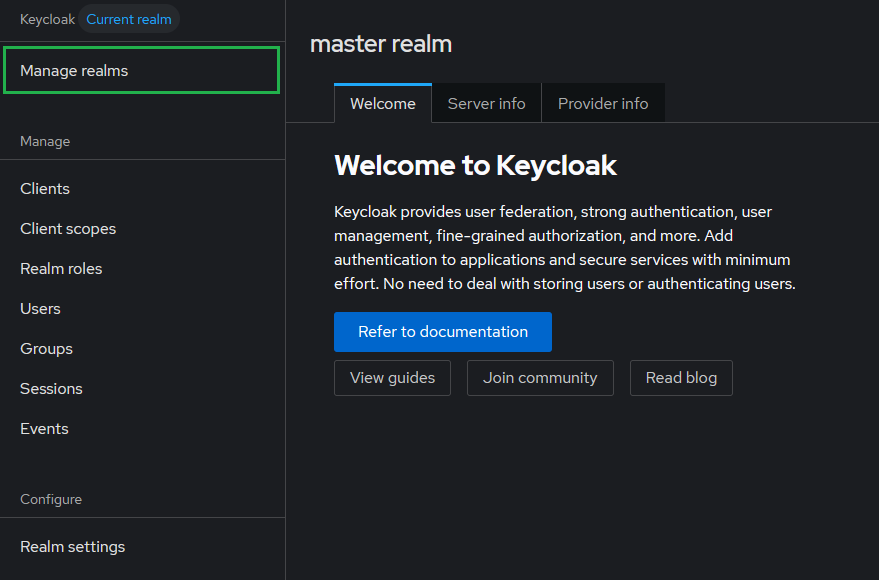
From the left menu click Manage realms
-
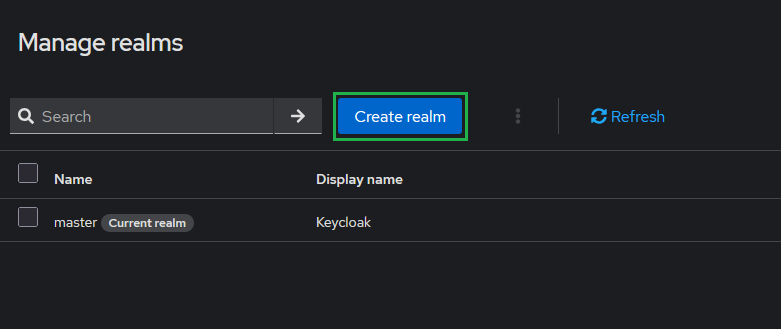
Click Create realm
-
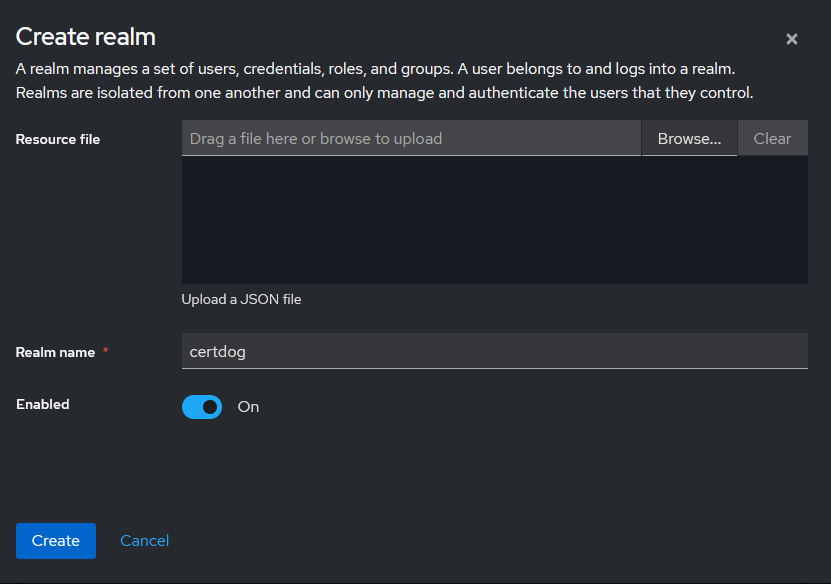
For Realm name enter certdog, ensure Enabled is On and click Create
-
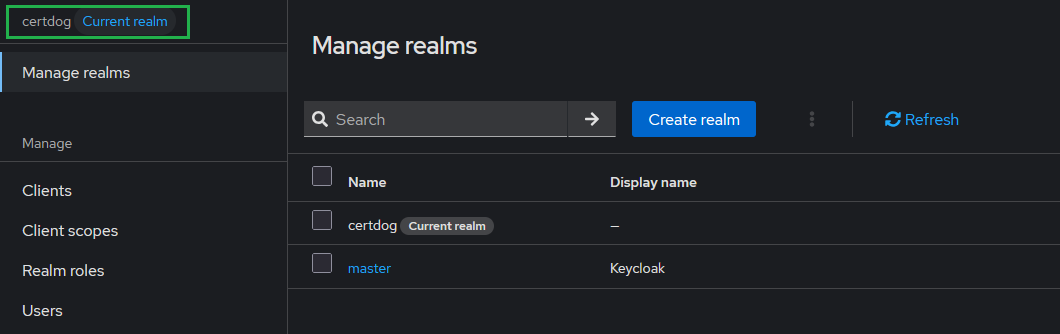
Ensure the new Realm is selected as the current realm (shown at the top of the left menu). If not, select it from the Manage realms list
-
Note the Realm name as it will form part of the [ISSUER-URI] required later
All of the following steps must be carried out within this Realm.
Create the Client
The client represents the certdog application within Keycloak.
Ensure you have the correct hostname for the certdog server. E.g. https://certdog.intserver.local as discussed in the Before Starting section above.
-
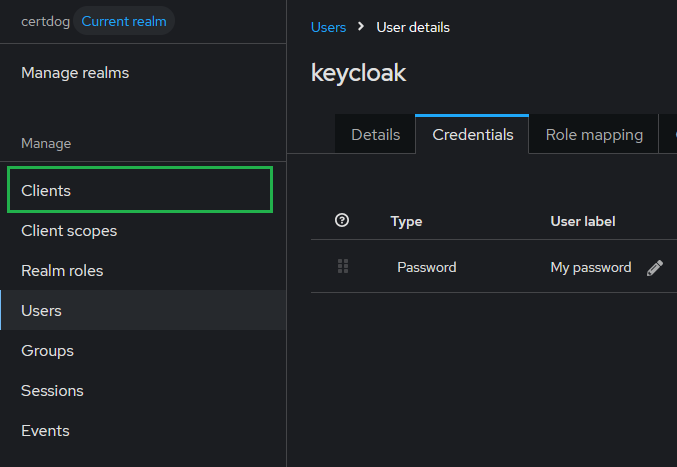
From the left menu click Clients
-
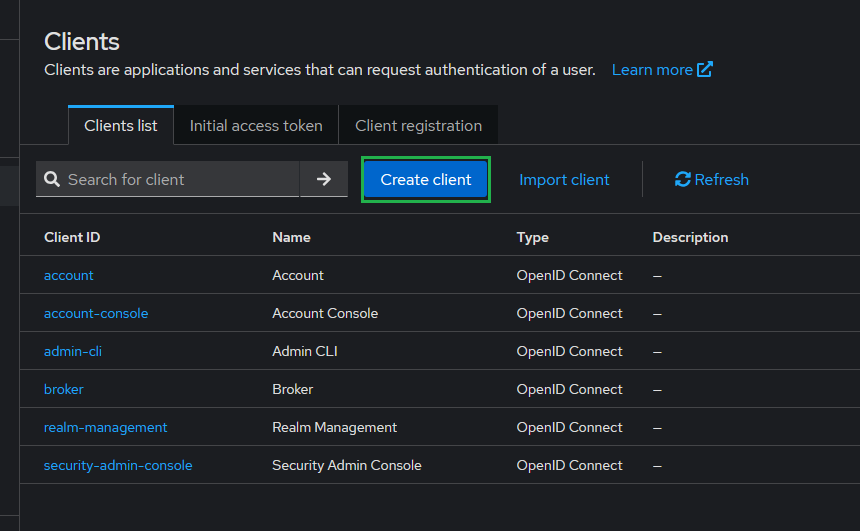
Click Create client
-
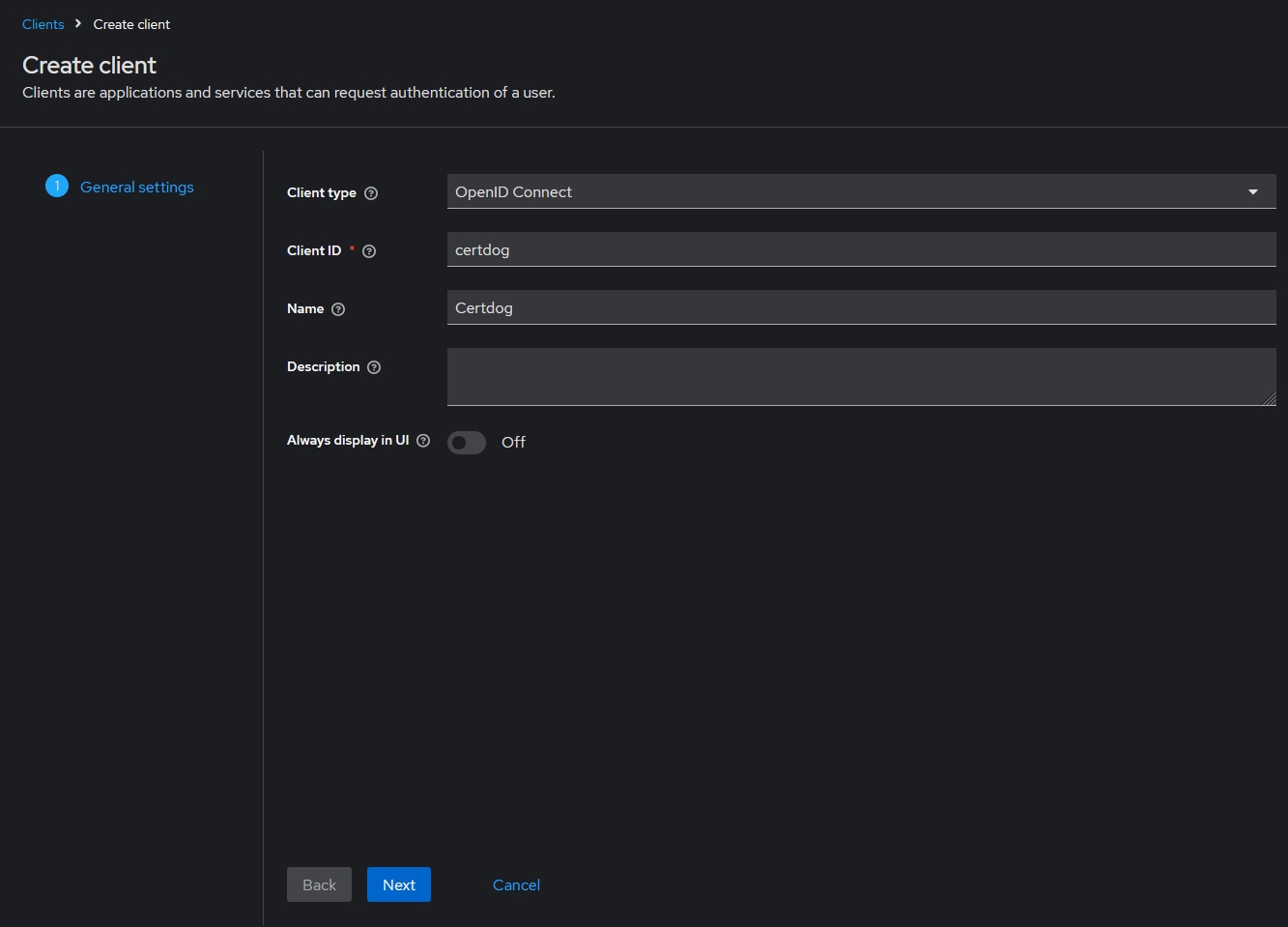
On the General settings page, for Client type select OpenID Connect and for Client ID enter certdog. Optionally enter a Name and Description. Click Next
-
Note the Client ID value as it is the [CLIENT-ID] and will be required later
-
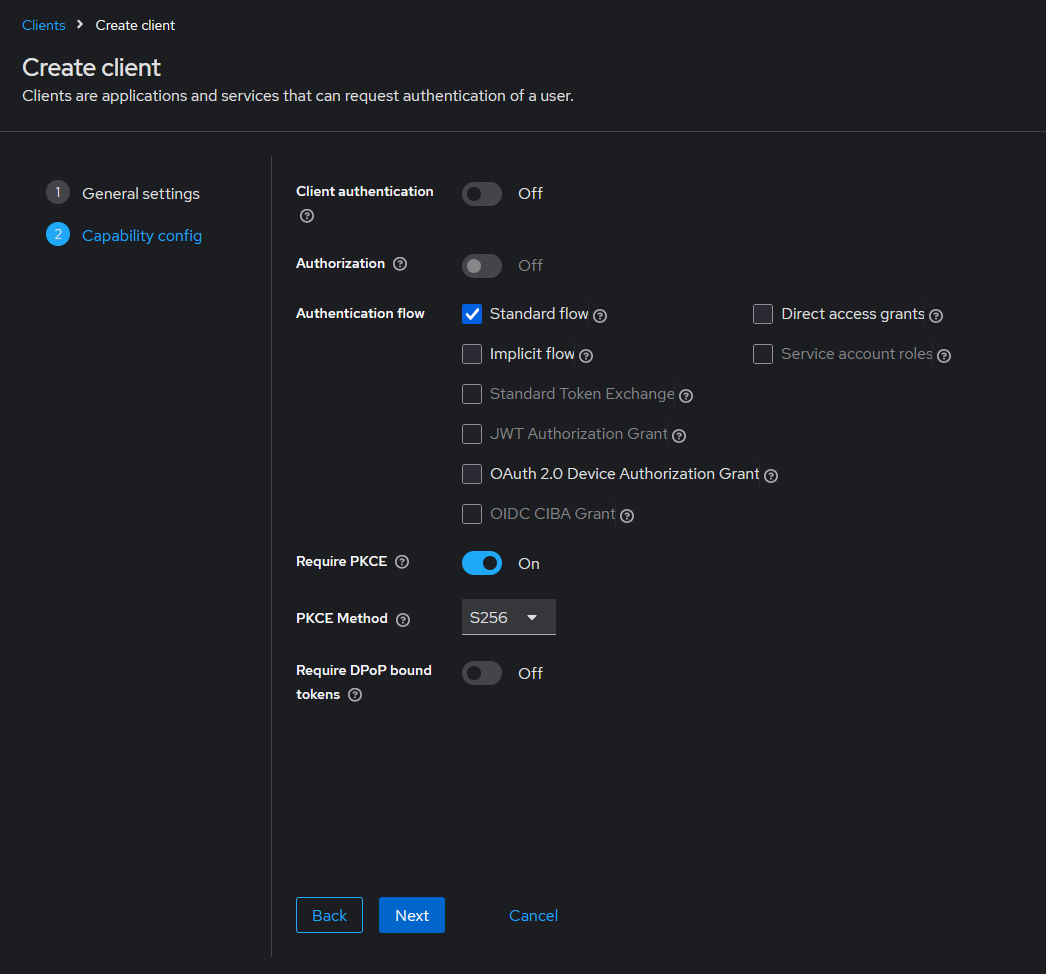
On the Capability config page:
-
Ensure Client authentication is Off (the certdog UI is a public client)
-
Under Authentication flow ensure only Standard flow is checked
-
Set Require PKCE to On and for PKCE Method select S256
-
Click Next
-
-
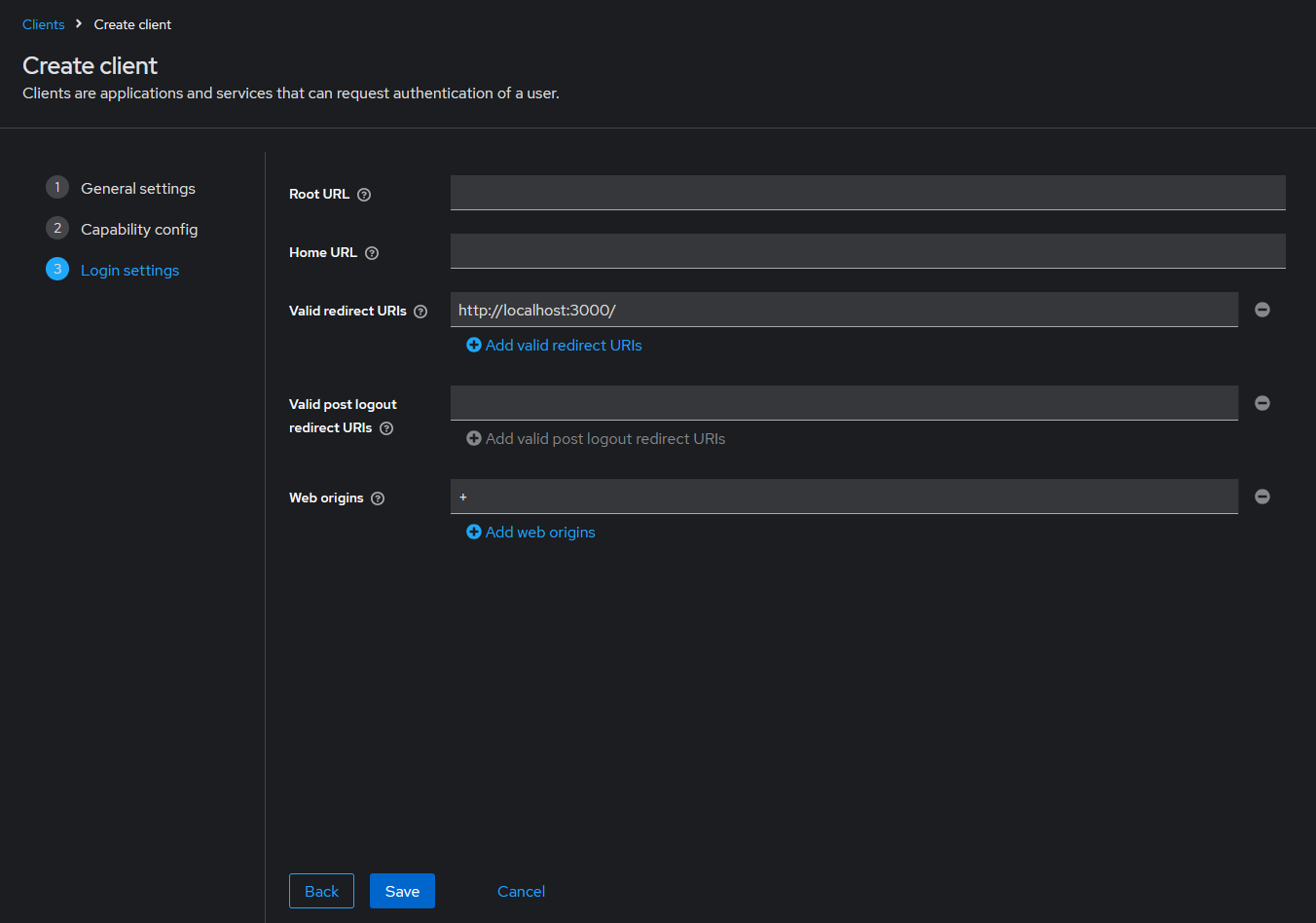
On the Login settings page, under Valid redirect URIs enter the Certdog User Interface URL in the form:
https://[certdog hostname]/certdog/ui/
E.g. if your instance is located at https://certdog.intserver.local the full URL to enter would be:
https://certdog.intserver.local/certdog/ui/
NOTE: This MUST be the URL you will be accessing the certdog server from. If it is wrong, redirection after authentication will fail.
-
Note this value as it is the [REDIRECT-URI] and will be required later
-
Under Web origins enter + (this allows requests from all of the Valid redirect URIs origins)
-
Click Save
If you will be accessing certdog from multiple URLs - in addition to the one set in Step 6 above (e.g. if you have several DNS aliases configured or will also be accessing a local at 127.0.0.1). Add the additional locations as follows:
From the Clients list, click on the certdog client. On the Settings tab, under Access settings, click the Add valid redirect URIs link and enter any other possible URLs. Click Save
Create the Client Scope
-
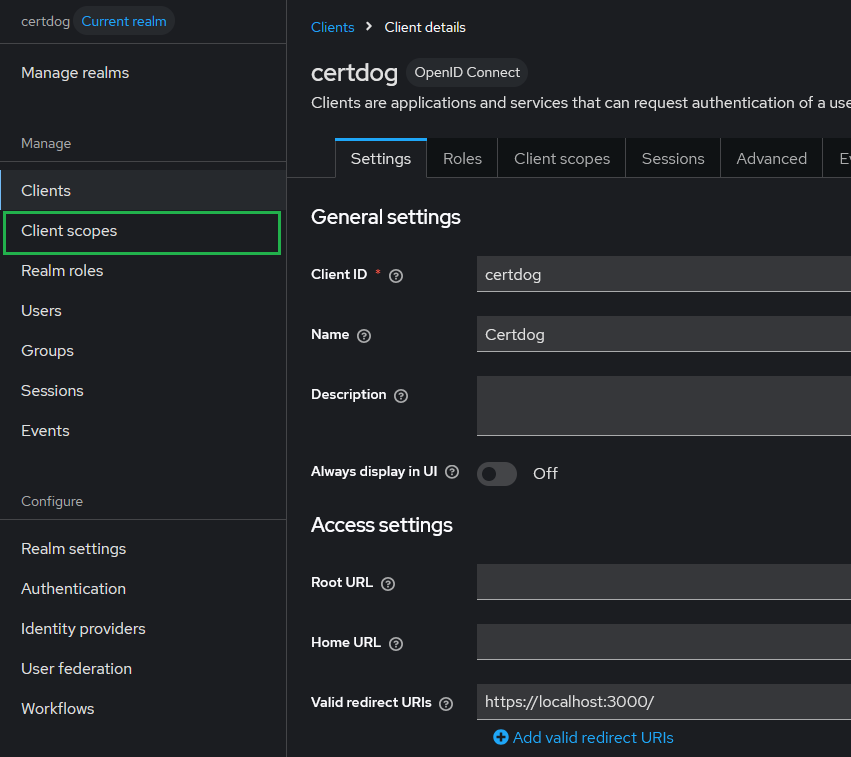
From the left menu click Client scopes
-
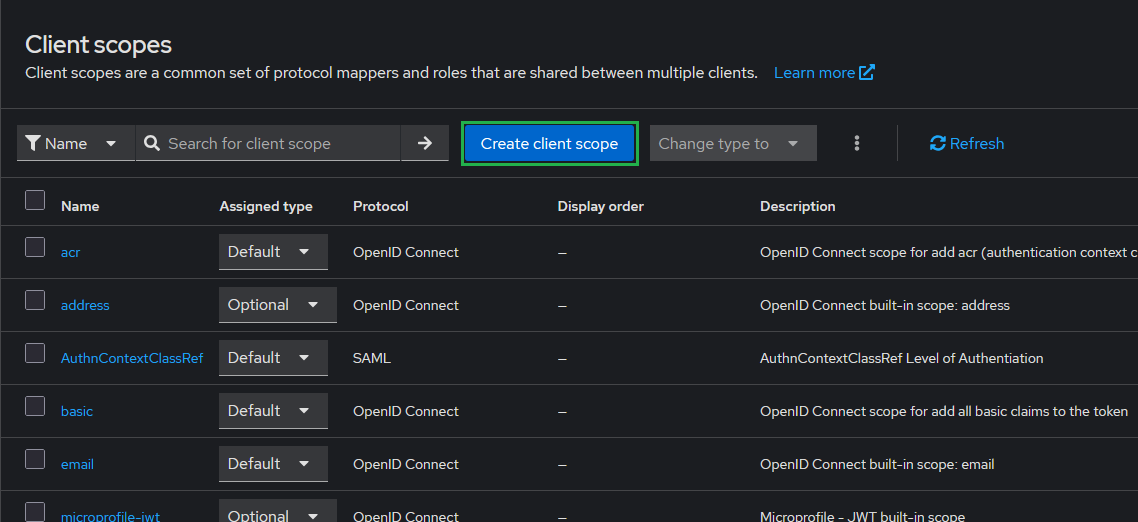
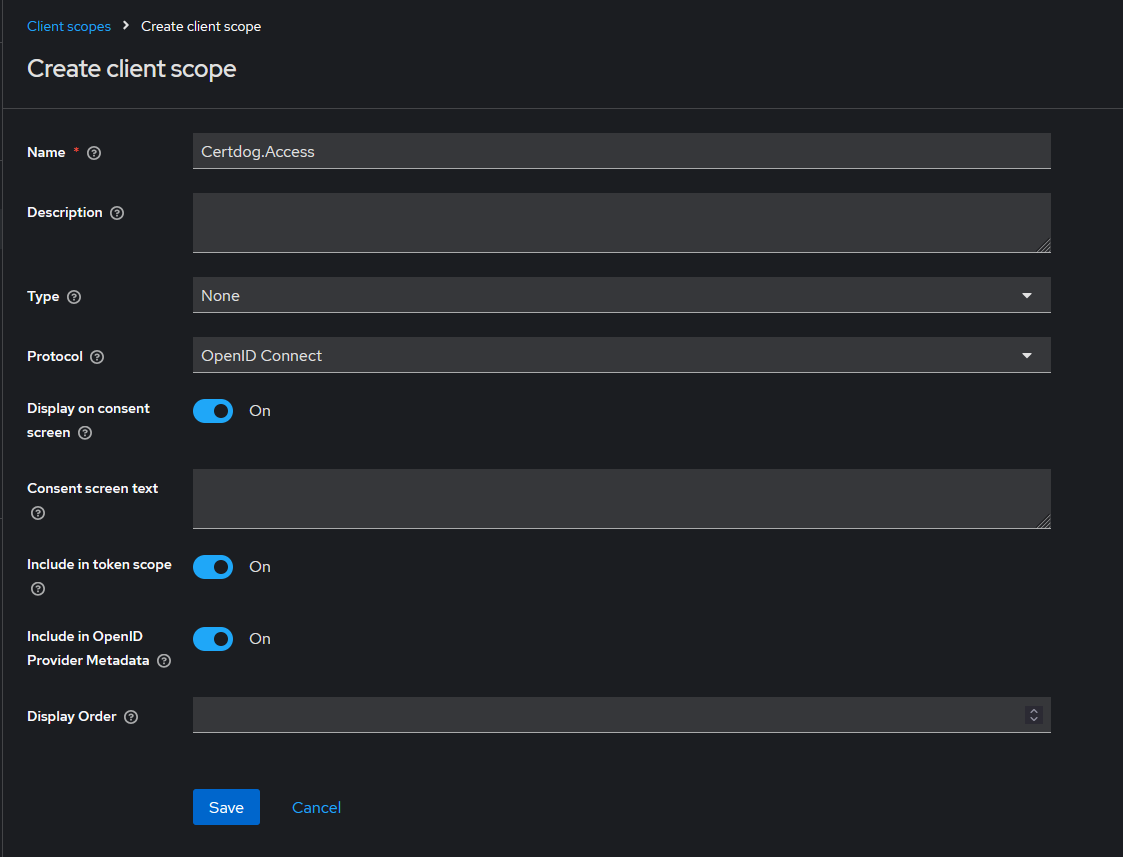
Click Create client scope
-
For Name enter Certdog.Access
-
For Type select None and for Protocol select OpenID Connect
-
Ensure Include in token scope is On
-
Click Save
-
Note the scope name as it is the [API-SCOPE] and will be required later
Add the Scope to the Client
-
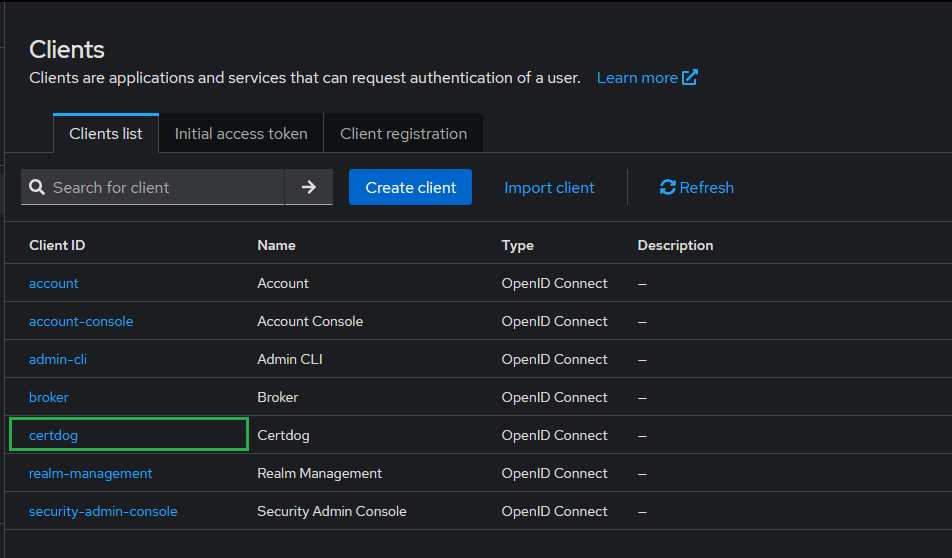
From the left menu click Clients and select the certdog client
-
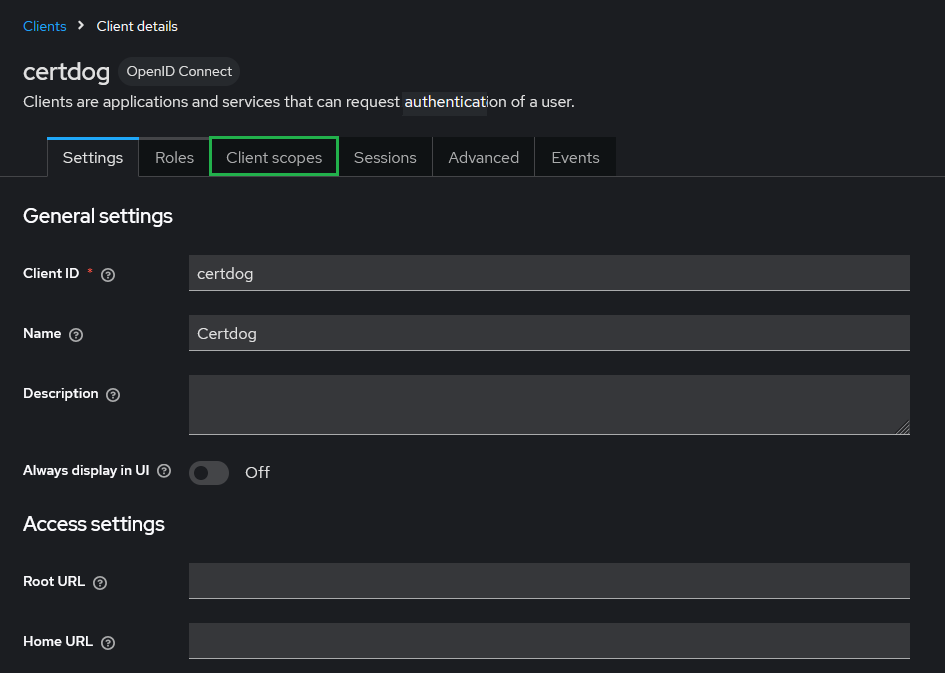
Select the Client scopes tab
-
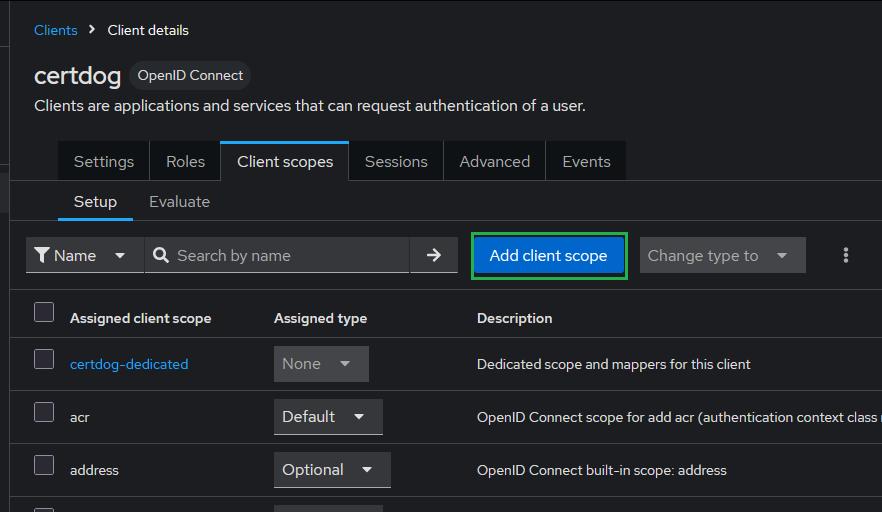
Click Add client scope
-
Check Certdog.Access, click Add and select Default
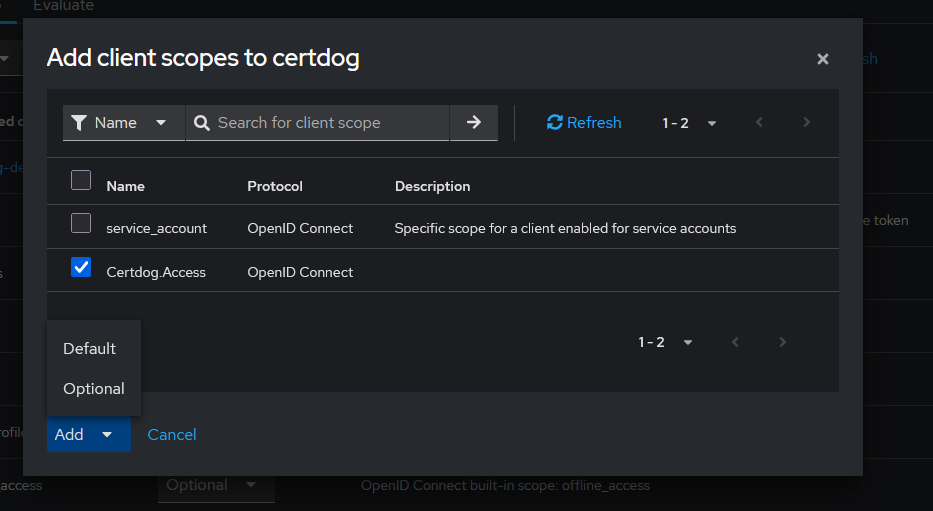
(certdog always explicitly requests this scope, so Optional may also be selected)
Enable the claims for user identification and group support
Certdog requires the following from the access token issued by Keycloak:
- The token audience (
audclaim) must contain the [CLIENT-ID] - A
upnclaim containing the username used by certdog - A
groupsclaim containing the user’s group membership
These are added via mappers on the client’s dedicated scope.
Add the Audience Mapper
-
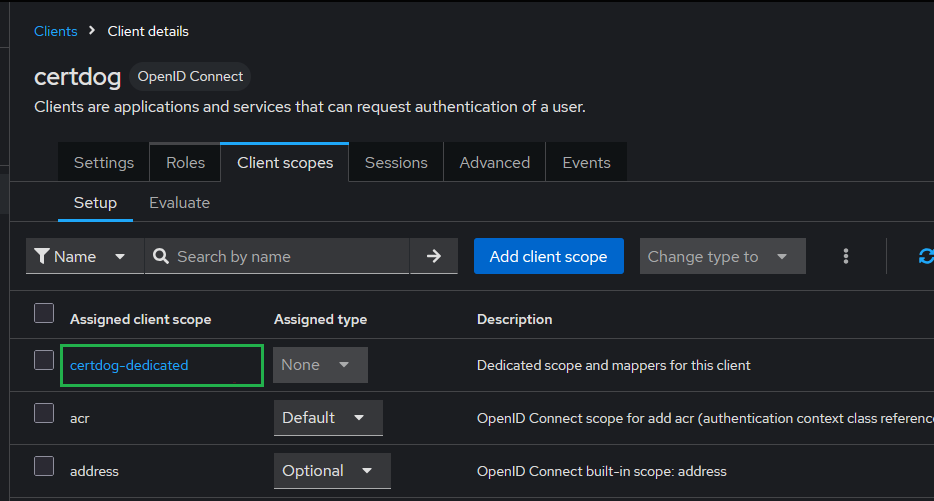
From the certdog client’s Client scopes tab, click on certdog-dedicated
-
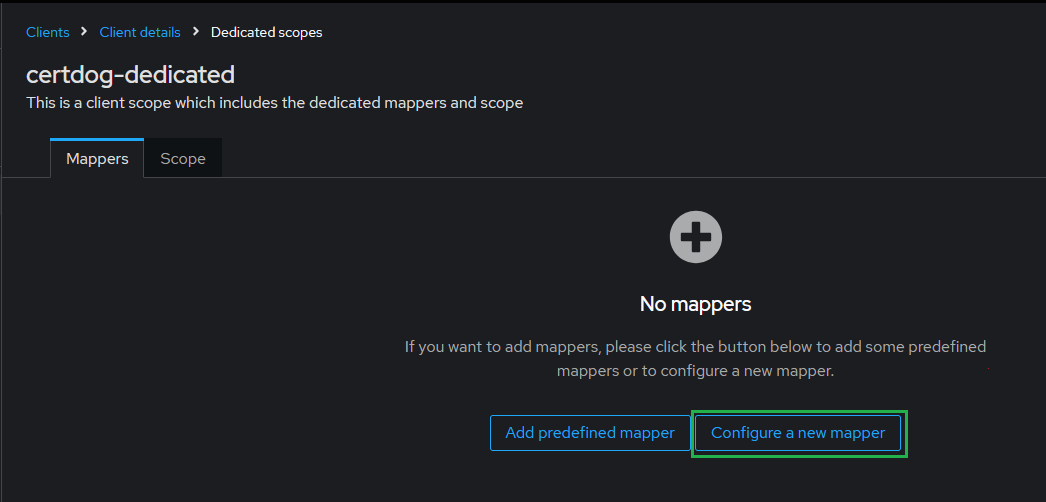
Click Configure a new mapper
-
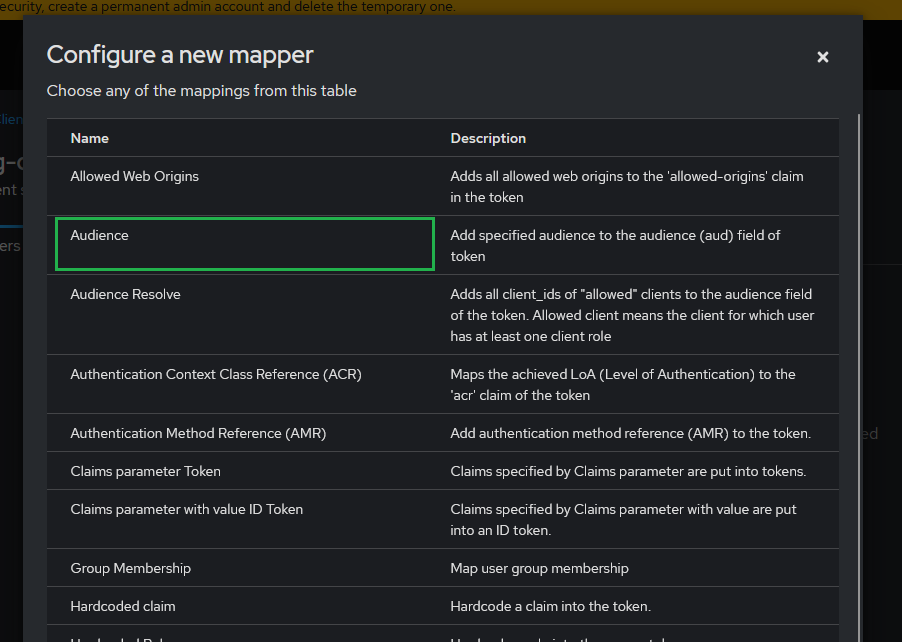
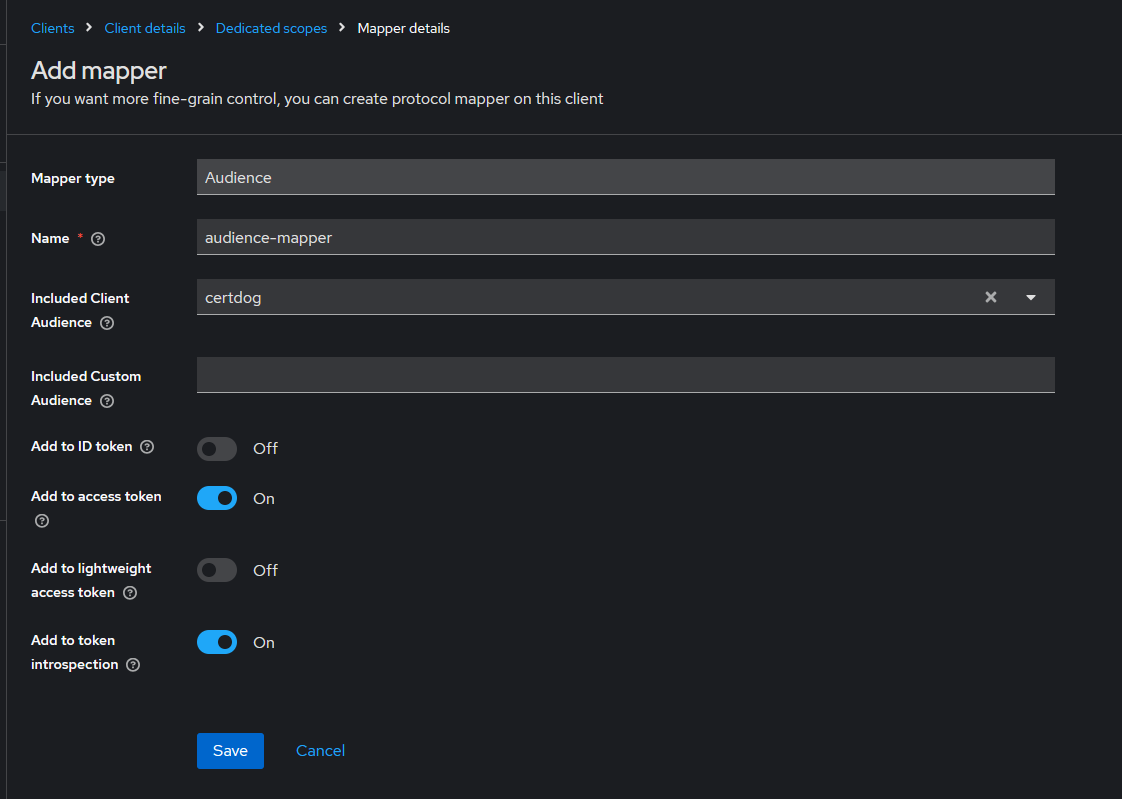
Select Audience
-
For Name enter something like audience-mapper
-
For Included Client Audience select certdog
-
Ensure Add to access token is On
-
Click Save
Add the User Identification (upn) Mapper
-
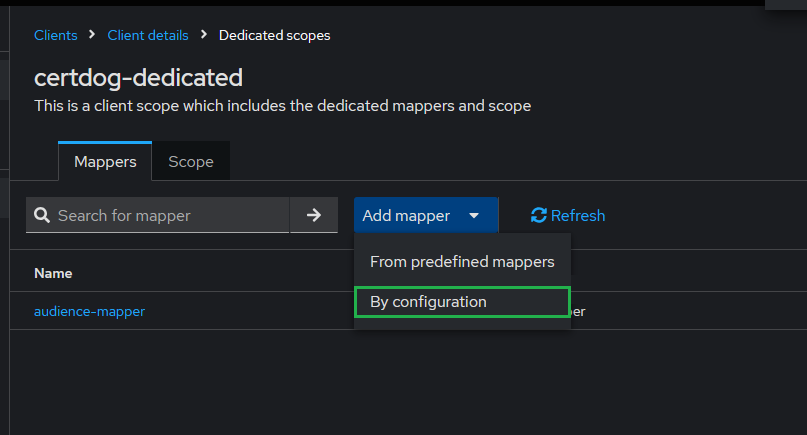
Return to the certdog-dedicated scope, click Add mapper and select By configuration
-
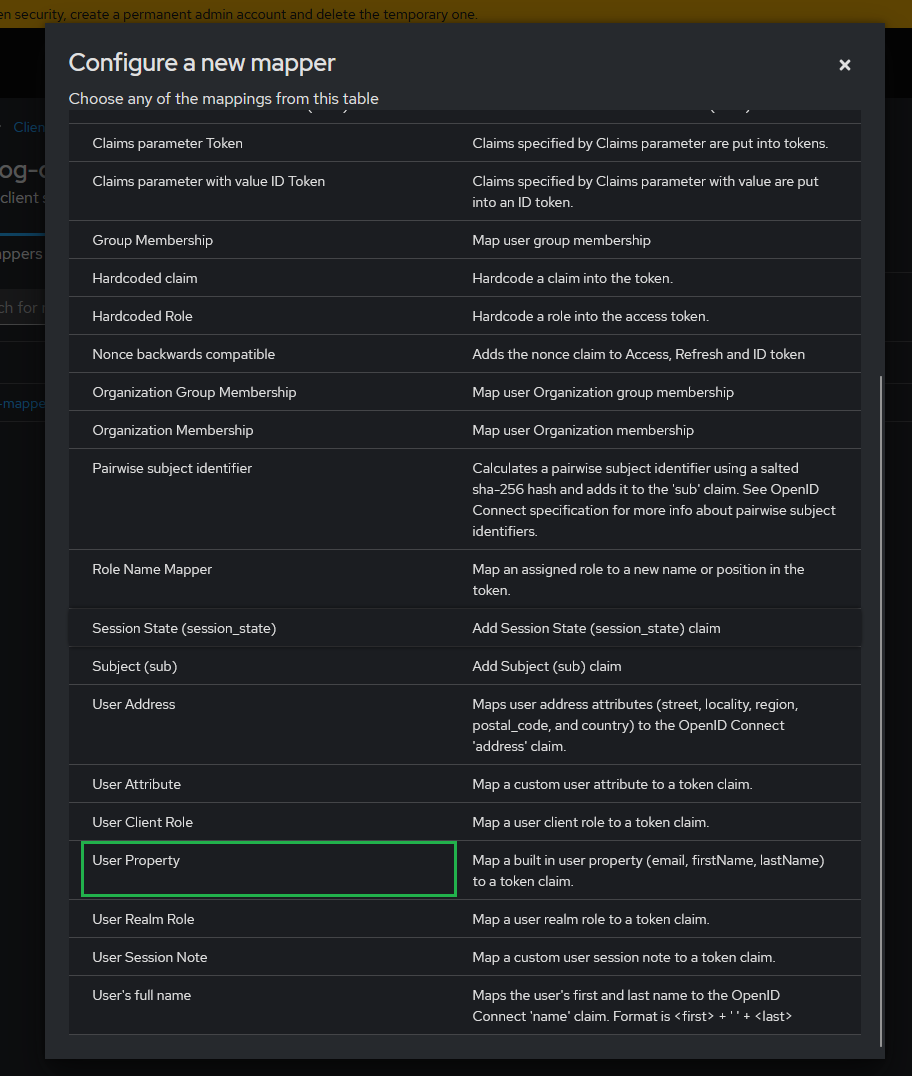
Select User Property
-
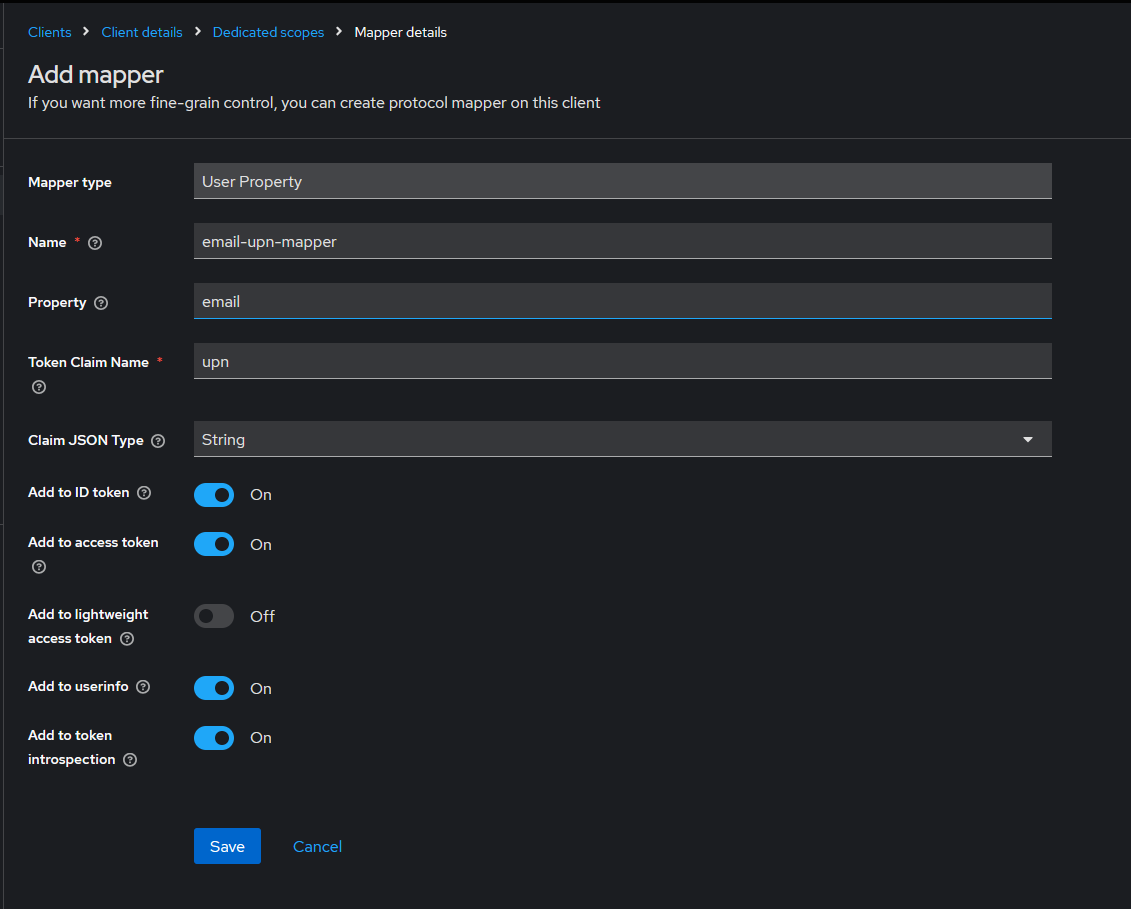
For Name enter something like email-upn-mapper
-
For Property enter email
-
For Token Claim Name enter upn
-
For Claim JSON Type select String
-
Ensure Add to ID token, Add to access token and Add to userinfo are On
-
Click Save
The user’s email address will now be used as their certdog username. If you would prefer to use a different user property (e.g. username), enter that for Property instead. Alternatively, certdog can be configured to read a different claim - see Mapping alternative User ID claims.
Add the Groups Mapper
-
Return to the certdog-dedicated scope, click Add mapper and select By configuration
-
Select Group Membership
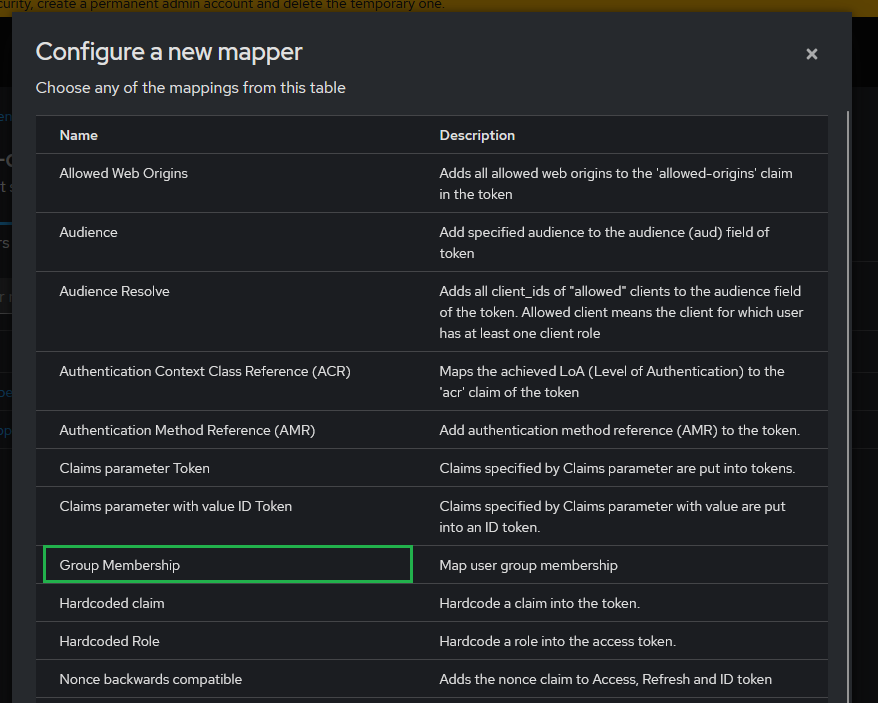
-
For Name enter something like group-mapper
-
For Token Claim Name enter groups
-
Ensure Add to ID token, Add to access token and Add to userinfo are On
-
Leave Full group path as On (the default). This means groups will be identified by their full path e.g.
/CERTDOG_ADMINS. This is the value that will be mapped to certdog Teams later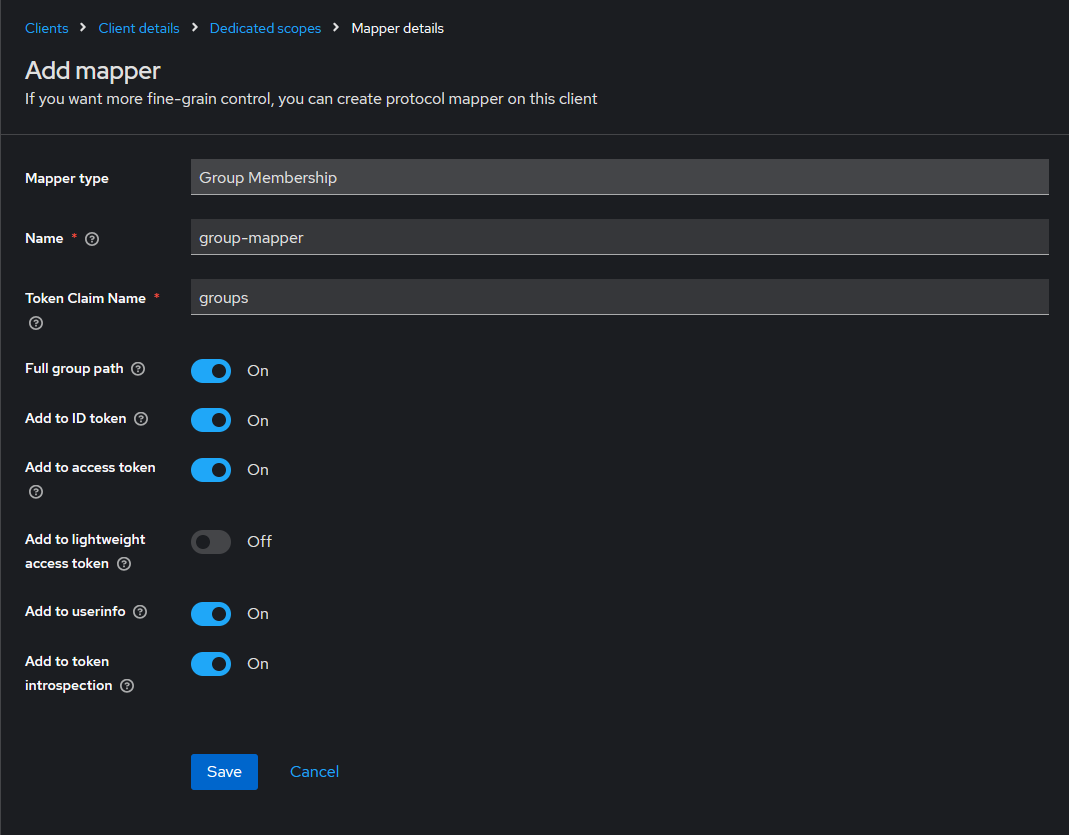
-
Click Save
Obtain Required Values
-
The [ISSUER-URI] takes the form:
https://[keycloak hostname]:[port]/realms/[realm name]E.g.
https://keycloak.intserver.local:8443/realms/certdogThis can be confirmed by browsing to
[ISSUER-URI]/.well-known/openid-configurationand checking the value of issuer -
The [CLIENT-ID] should have been noted in the setup steps above
-
The [REDIRECT-URI] should have been noted in the setup steps above
-
The [API-SCOPE] should also have been noted in the setup steps above
The Keycloak Configuration is now complete. Ensure you have noted the values for:
- [REDIRECT-URI]
- e.g.
https://certdog.intserver.local/certdog/ui/
- e.g.
- [API-SCOPE]
- e.g.
Certdog.Access
- e.g.
- [CLIENT-ID]
- e.g.
certdog
- e.g.
- [ISSUER-URI]
- e.g.
https://keycloak.intserver.local:8443/realms/certdog
- e.g.
Trust the Keycloak TLS Certificate
Both the browser (running the certdog UI) and the certdog service connect to Keycloak to retrieve its configuration. Both must therefore trust the Keycloak server’s TLS certificate.
Browser
If the Keycloak TLS certificate was issued by a CA that is already trusted by your users’ machines (e.g. your organisation’s internal CA) no action is required. Otherwise, the issuing root CA certificate must be distributed to the browsers’ trust stores.
Certdog Service
Obtain the root certificate of the CA that issued the Keycloak TLS certificate. Save this certificate here:
[Certdog Install]\config\sslcerts\keycloakroot.cer
(note: To determine what certificate the server is returning, you can run a tool such as openssl e.g. openssl s_client -connect keycloak.intserver.local:8443 -showcerts)
Open a command prompt and navigate to [Certdog Install]\config\sslcerts then run the following:
C:\certdog\config\sslcerts>..\..\java\bin\keytool -import -alias "Keycloak Root" -file keycloakroot.cer -keystore dbssltrust.jks
Replace “Keycloak Root” with an alias for your root certificate (e.g. the certificate’s common name)
At the following prompt
Enter keystore password:
Enter the password for the JKS file. If you have not changed this it will be held within the README.txt in the same folder e.g. C:\certdog\config\sslcerts\README.txt
The certificate details will be displayed. Ensure they are correct and when prompted Trust this certificate? [no]: type yes and press Enter
The certdog service must be restarted for this to take effect. This will be done in the Restart Certdog step below.
Update the API properties file
On the certdog server, open the application.properties file located here:
[certdog install]\config\application.properties
E.g.
c:\certdog\config\application.properties
Add in the following two lines, substituting in the values for [ISSUER-URI] and [CLIENT-ID] as obtained above:
spring.security.oauth2.resourceserver.jwt.issuer-uri=[ISSUER-URI]
spring.security.oauth2.resourceserver.jwt.audiences=[CLIENT-ID]
E.g.
spring.security.oauth2.resourceserver.jwt.issuer-uri=https://keycloak.intserver.local:8443/realms/certdog
spring.security.oauth2.resourceserver.jwt.audiences=certdog
Save the file
Update the UI config file
On the certdog server, open the config.json file located here:
[certdog install]\tomcat\webapps\certdog#ui\config.json
E.g.
C:\certdog\tomcat\webapps\certdog#ui\config.json
It will contain a configuration similar to:
{
  "apiUrl" : "../api/"
}
Update the contents, as shown below, by adding in the oauth section and populating with the values for [ISSUER-URI], [CLIENT-ID], [REDIRECT-URI] and [API-SCOPE] as gathered above:
{
  "apiUrl" : "../api/",
  "oauth": {
    "server": "[ISSUER-URI]",
    "clientId": "[CLIENT-ID]",
    "redirectUri": "[REDIRECT-URI]",
    "scope": "[API-SCOPE]"
  }
}
Note that there a comma has to be added after the apiUrl entry. It is often easier to copy the entire contents above and substitute in your own values to avoid any formatting mistakes.
E.g.
{
  "apiUrl" : "../api/",
  "oauth": {
    "server": "https://keycloak.intserver.local:8443/realms/certdog",
    "clientId": "certdog",
    "redirectUri": "https://certdog.intserver.local/certdog/ui/",
    "scope": "Certdog.Access"
  }
}
Restart Certdog
On windows open the Services snapin, locate and stop the Krestfield Certdog Service. When showing as not running Start the service.
On Linux, run the ./shutdown-certdog.sh script followed by the ./start-certdog.sh from the bin directory
If certdog has already been operating, any browsers used to access the system may have cached previous settings. This cache must be cleared or an alternative browser may be used (e.g. Chrome instead of Edge).
Clearing of the cache is browser dependant but for Chrome, click the menu and choose Settings. From the left menu select Privacy and security. Then click on Delete browsing data. Select Cached images and files and Cookies and other site data, then click Delete data. The keyboard combination of CTRL-SHIFT-DELETE can also be used to bring up the delete browsing data dialog.
Verify Setup
Access the certdog site. If you are still logged in from a previous session, click the user icon (top-right) and click Log Out.
The logon screen should now show the OAuth button:
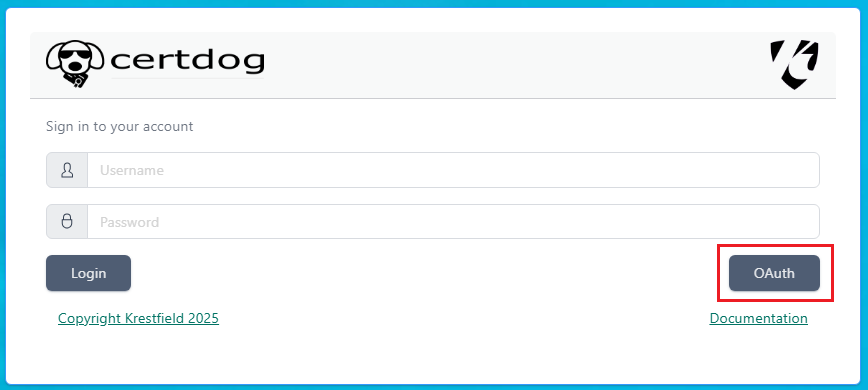
If you don’t see this. Check the config.json file as configured above, ensuring it has an oauth entry and the formatting and data are correct. Ensure that the browser cache has been cleared.
At this point, clicking the OAuth button will fail as no groups have yet been mapped. This needs to be configured first, as described in the next section.
Map Keycloak Groups to Certdog Teams
Before certdog will authenticate users (using their Keycloak credentials) they must be mapped to a certdog Team.
This will define what permissions the user has within certdog.
This is achieved by mapping the users Keycloak Groups to one or more certdog Teams.
Create Groups in Keycloak
If the required groups already exist in the Realm, skip to Add Users to Groups.
-
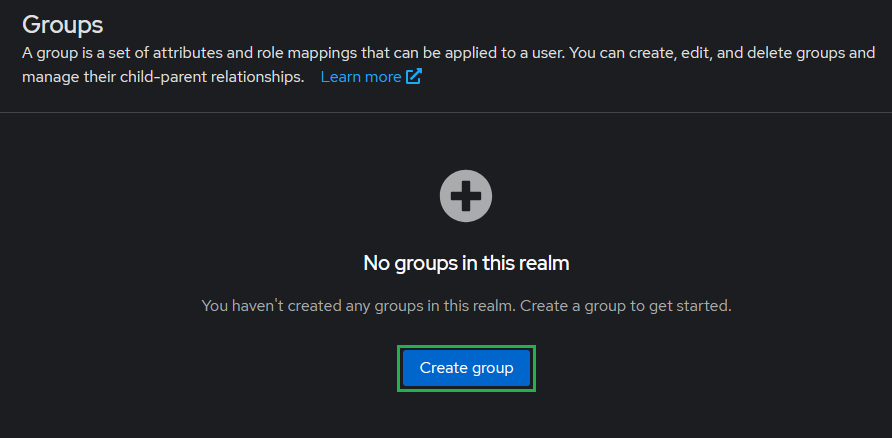
From the Keycloak admin console, ensure the correct Realm is selected and click Groups from the left menu
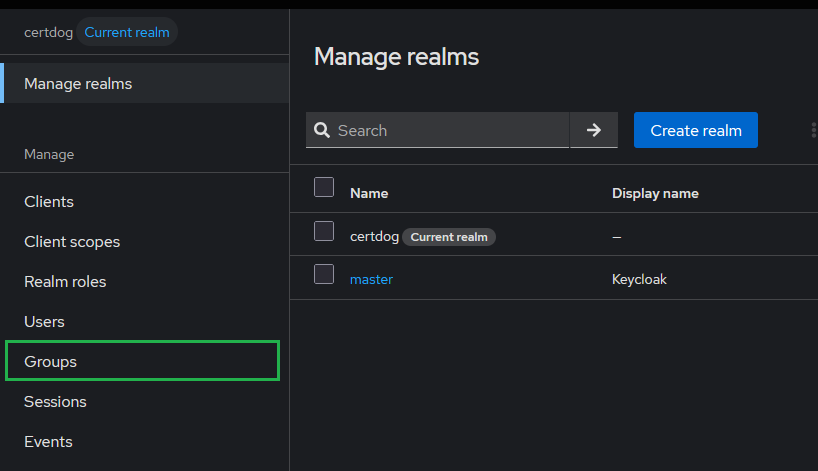
-
Click Create group
-
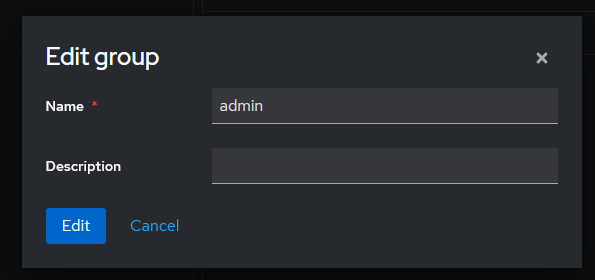
For Name enter a name e.g. CERTDOG_ADMINS or CERTDOG_NETWORK_TEAM. Optionally enter a Description
-
Click Create
The group’s full path is the group name prefixed with / (e.g. /CERTDOG_ADMINS). If the group is created as a child of another group, the path will include the parent group(s) e.g. /IT/CERTDOG_ADMINS. Note this value as we now need to set this in certdog.
Add Users to Groups
Users can be added to a group when they are created, or from an existing user’s Groups tab.
To create a new user:
-
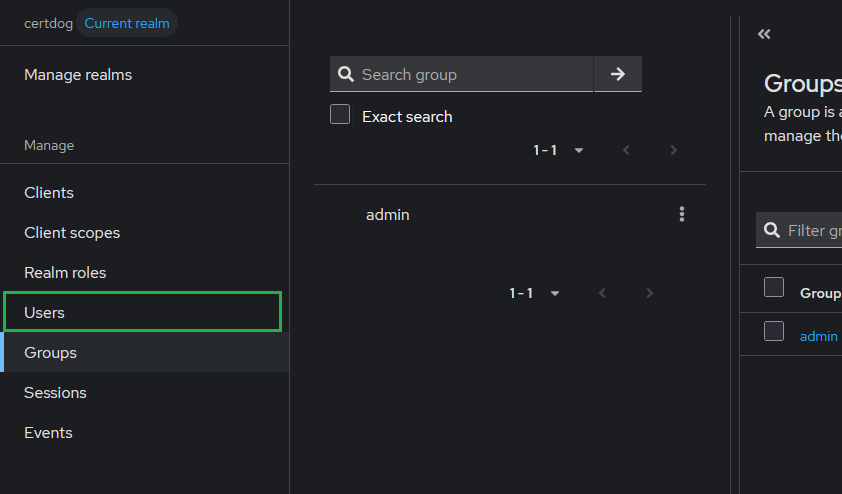
Click Users from the left menu
-
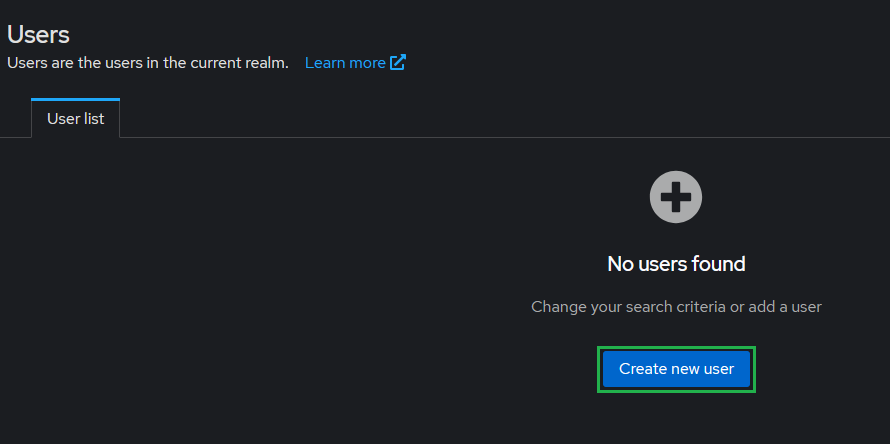
Click Create new user (or Add user if users already exist)
-
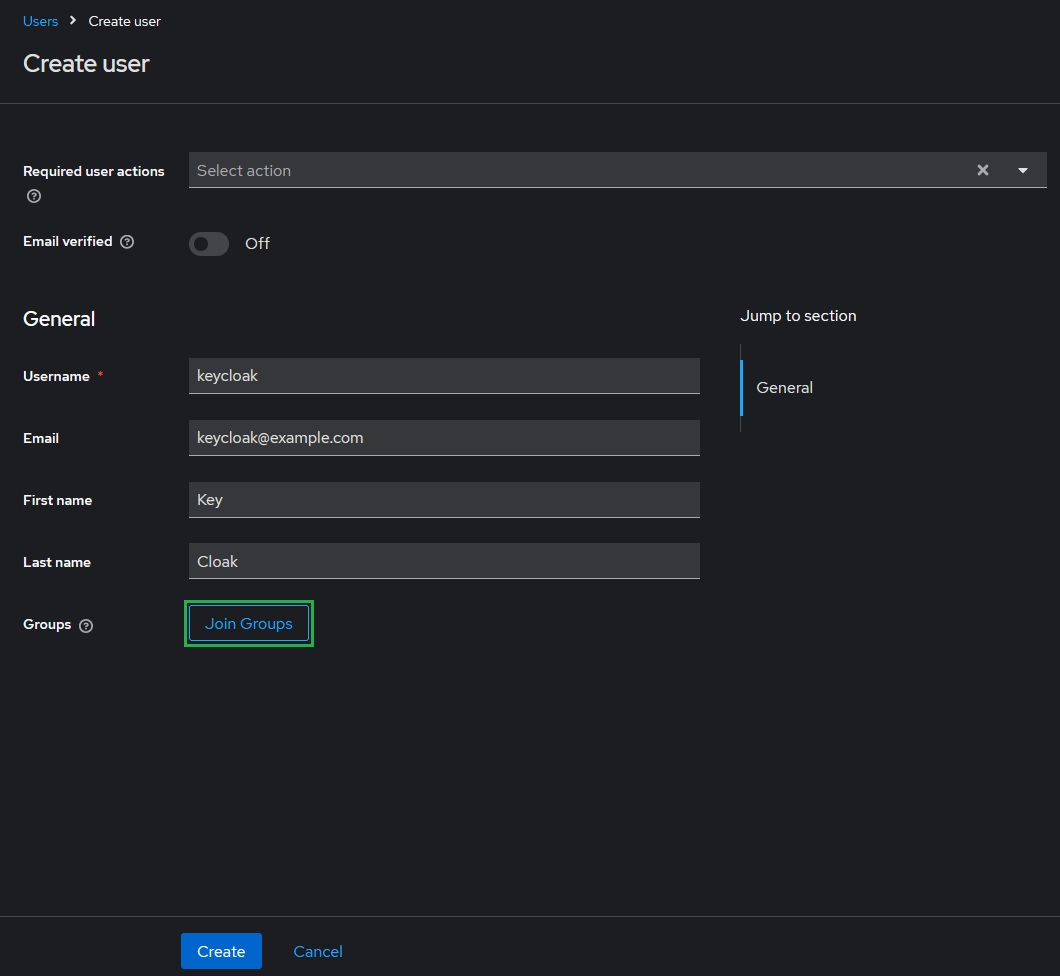
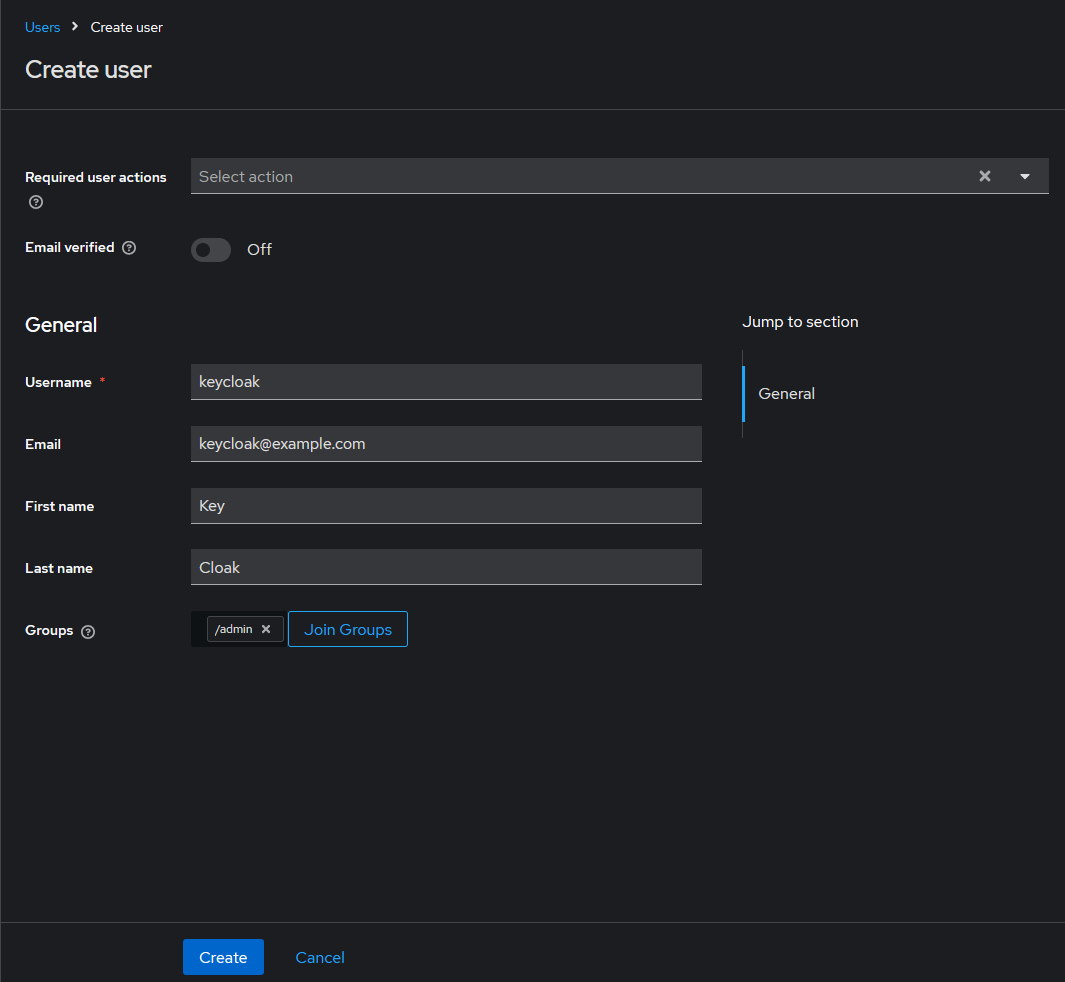
Enter a Username and Email along with the First name and Last name. Note that the Email is required, as this is mapped to the
upnclaim (see Enable the claims for user identification and group support) -
Click Join Groups
-
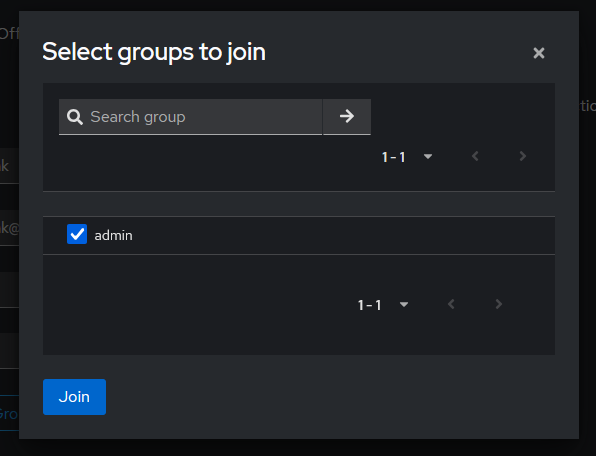
Select the required group(s) and click Join
-
Click Create
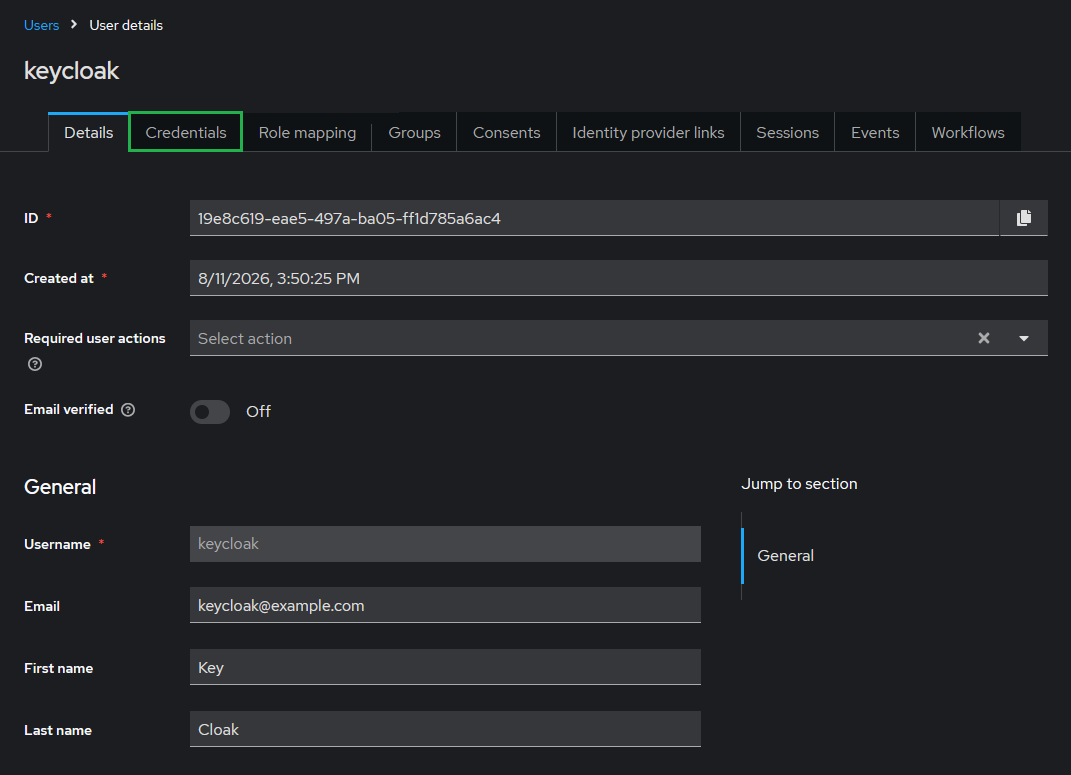
If the user’s credentials are not provided by an external source (such as a federated LDAP or Active Directory) a password must be set:
-
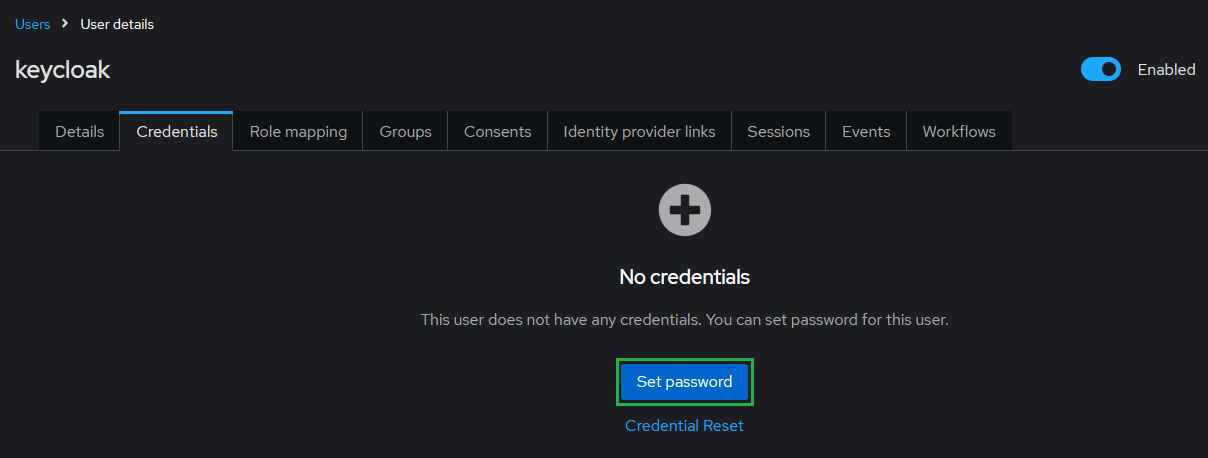
From the user’s details, select the Credentials tab
-
Click Set password
-
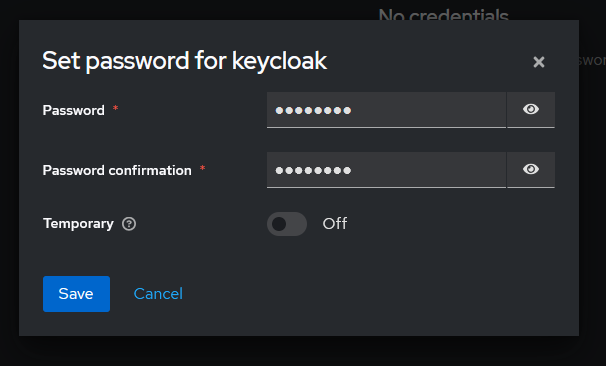
Enter and confirm the password. Set Temporary to On if the user should be required to change the password at first login
-
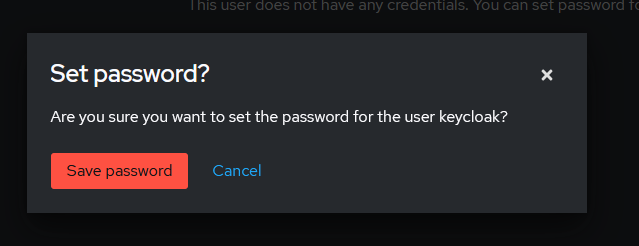
Click Save and then Save password to confirm
Map Groups in Certdog
Log into certdog using a local (or AD, if configured) administrator account. In this case you will have to navigate to:
https://[certdog server]/certdog/ui/#/login
To bypass the OAuth process and login with a local account. Note, if you miss this and log in via the OAuth mechanism, just log out and you will be taken back to the standard login screen.
Navigate to Teams and either select an existing or create a new Team.
You should now see options for Add OAuth Group. Enter the full group path we noted from the Group above (e.g. /CERTDOG_ADMINS) and click Add.
Note that the leading / must be included and the value is case sensitive.
Make any other updates to the team as required and click Add (or Update for an existing team).
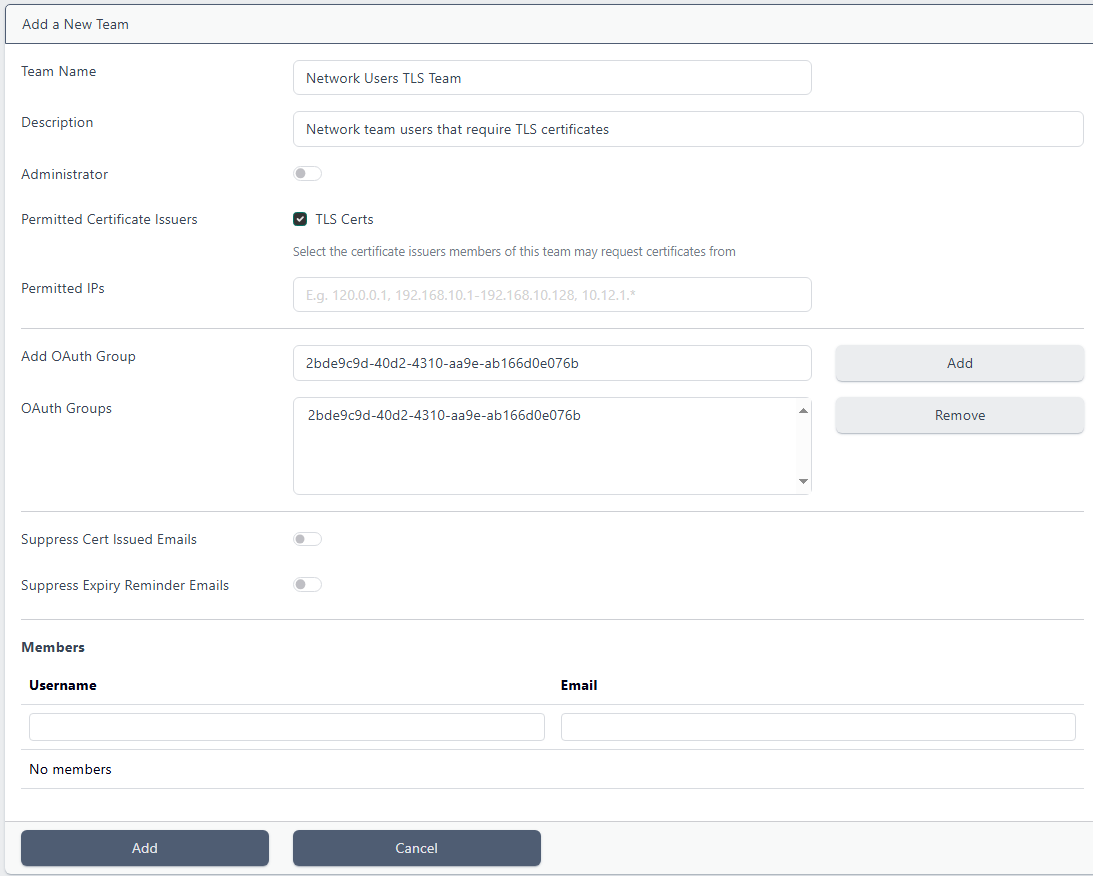
Users that are a member of the group created in Keycloak will now have the permissions provided by that certdog team.
Note that when a Keycloak user authenticates, their account will then appear in the Users list in Certdog. This will show what Certdog Teams the user is a member of (based on their Keycloak group membership). None of the details for Keycloak accounts can be managed via Certdog - they continue to be managed via Keycloak only.
Logging in Options
Users with accounts in Keycloak should now be able to login to certdog. The Keycloak login process should take place whenever you navigate to the certdog URL or any links to it (e.g. to certificates) and will use SSO (Single Sign On) to allow access when previously logged in.
There is still the option to login with a local or Active Directory account (if configured). By navigating to the specific login URL:
https://[certdog server]/certdog/ui/#/login
Or by simply choosing the Log Out option from the user icon at the top of the screen. In both cases you will be presented with the login screen:
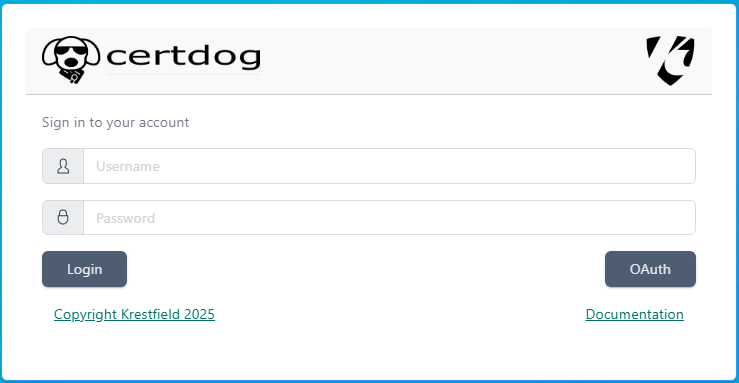
You may enter username and password details for local or AD users and click Login. You can still invoke the OAuth process from this screen by clicking the OAuth button.
Clicking the OAuth button will always ask you to confirm what account you wish to use. This is intentional to allow the switching of accounts.
Mapping alternative User ID claims
By default, the upn claim is used to identify the user. The Keycloak configuration above adds this claim by mapping the user’s email address to it.
Rather than adding a upn mapper, certdog can instead be configured to read a claim that Keycloak already provides (e.g. preferred_username or email). To do this, add the following to the .\certdog\config\application.properties file:
oauth.username.claim=preferred_username
(substitute preferred_username for whatever claim you wish to use)
Restart the certdog service
Common Issues
Invalid parameter: redirect_uri
If you see the following error from Keycloak during login:
We are sorry...
Invalid parameter: redirect_uri
This indicates that the redirectUri value contained in the config.json file does not match the URL that certdog is being accessed via. OR that the redirect URL configured in the Keycloak client is not correct.
To check which this is, perform the following:
Check the config.json file
On the certdog server, open the config.json file:
[certdog install]\tomcat\webapps\certdog#ui\config.json
It should look like something like the following:
{
  "apiUrl" : "../api/",
  "oauth": {
    "server": "https://keycloak.org.local:8443/realms/certdog",
    "clientId": "certdog",
    "redirectUri": "https://certdg.org.local/certdog/ui/",
    "scope": "Certdog.Access"
  }
}
Check the value for redirectUri and ensure it matches the URL you are accessing the certdog server with exactly.
In the case above it is set to https://certdg.org.local/certdog/ui/ but it should be https://certdog.org.local/certdog/ui/.
If different, save the file and restart as per the Restart Certdog above.
Check the Keycloak Client Redirect URIs
From the Keycloak admin console, ensure the correct Realm is selected, click Clients and select the certdog client.
On the Settings tab, under Access settings, check the values for Valid redirect URIs.
Ensure there is an entry that exactly matches the URL certdog is being accessed from (e.g. https://certdog.org.local/certdog/ui/). Correct this and click Save.
Client not found
If Keycloak reports Client not found during login, the clientId value in the config.json file does not match the Client ID of the client in Keycloak, or the server value refers to a different Realm. Check both values and restart as per the Restart Certdog above.
After updating the OAuth configuration, the changes don’t seem to take effect
When the configuration has been updated, the services must be restarted. If the same browser accessed certdog when the previous settings were enabled, it may cache some of the configuration. Effectively, this prevents the changes from being used.
Ensure the Certdog Service has been restarted and the browser cache has been delete. Refer to the Restart Certdog above for details.
Redirected back to Login screen after authentication
Misconfigured Groups
Authentication seems to complete OK but you are then just redirected back to the login screen.
This usually indicates that the authentication has failed at the certdog side. Check the logs ([certdog install]\logs\certdog.log). An entry such as the following:
[system] User failed to authenticate via OAuth token, missing required claims ('upn' and 'groups').
Indicates that the access token issued by Keycloak does not include the required claims. Check the mappers as described in Enable the claims for user identification and group support and ensure that Add to access token is On for each. Also ensure the user has an email address set (if mapping email to upn).
If no such entry is present, the user may not be part of a group that has been mapped to a certdog Team. See section Map Keycloak Groups to Certdog Teams for details on how to do this, and ensure the full group path (including the leading /) has been entered.
Incorrect Audience
If the log contains an entry such as:
A user failed to authenticate via OAuth token: ... The aud claim is not valid
The access token does not contain the expected audience. Ensure the audience mapper has been added as described in Enable the claims for user identification and group support and that the spring.security.oauth2.resourceserver.jwt.audiences value in application.properties matches the [CLIENT-ID].
Untrusted Certificates
If the groups appear correct. Examine the certdog.log and the console.out log file, located in the [certdog install]\bin directory.
Search for any errors such as Unable to fetch the required details to decode tokens or PKIX path building failed e.g.
Caused by: javax.net.ssl.SSLHandshakeException: PKIX path building failed: sun.security.provider.certpath.SunCertPathBuilderException: unable to find valid certification path to requested target
Caused by: org.springframework.web.client.ResourceAccessException: I/O error on GET request for "https://keycloak.org.local:8443/realms/certdog/.well-known/openid-configuration": PKIX path building failed: sun.security.provider.certpath.SunCertPathBuilderException: unable to find valid certification path to requested target
This indicates that the certdog service does not trust the Keycloak server’s TLS certificate. Follow the steps in Trust the Keycloak TLS Certificate and restart the Krestfield Certdog Service.
Running a Keycloak Test Instance
If you would like to evaluate Keycloak integration and do not have an existing Keycloak server, a test instance can be run using Docker. This is for evaluation only and should not be used in production. Refer to the Keycloak documentation for production deployment guidance.
As noted above, Keycloak must be accessed over HTTPS. For a quick test on the certdog server itself, the TLS certificate supplied with certdog may be used. The following command (run from PowerShell) mounts the certdog sslcerts folder into the container and starts Keycloak on port 8443:
docker run `
    --name certdog-keycloak `
    --mount type=bind,src=C:\certdog\config\sslcerts,dst=/mnt/certs `
    -p 127.0.0.1:8443:8443 `
    -e KC_BOOTSTRAP_ADMIN_USERNAME=admin `
    -e KC_BOOTSTRAP_ADMIN_PASSWORD=[ADMIN-PASSWORD] `
    -e KC_HTTPS_KEY_STORE_FILE=/mnt/certs/tomcatssl.p12 `
    -e KC_HTTPS_KEY_STORE_PASSWORD=[KEYSTORE-PASSWORD] `
    quay.io/keycloak/keycloak start-dev
Where:
- [ADMIN-PASSWORD] is the password for the initial Keycloak
adminaccount - [KEYSTORE-PASSWORD] is the password for the certdog
tomcatssl.p12file (if not changed, this will be held within the README.txt in thesslcertsfolder)
Alter C:\certdog to your own certdog installation location.
The Keycloak admin console will then be available at https://127.0.0.1:8443/admin and the [ISSUER-URI] for a Realm named certdog will be https://127.0.0.1:8443/realms/certdog.
As this uses the same certificate as certdog, the browser will already trust it if it trusts the certdog server. The certdog service must still be configured to trust the issuing CA, as described in Trust the Keycloak TLS Certificate.
The container is given a name so that it can be restarted later without creating a new one:
# Start up the previously-created container
docker start certdog-keycloak

# Use -a or --attach to view the output instead of running it in the background
docker start certdog-keycloak --attach
See the Keycloak Docker docs for the most up-to-date docker command and the Keycloak TLS docs for other ways to configure TLS (e.g. using a certificate and private key in PEM format).